
Manage reports
In the dashboard, managers keep track of all incoming reports. Here you can filter reports, review them, change their status, convert incidents into tasks and export reports.
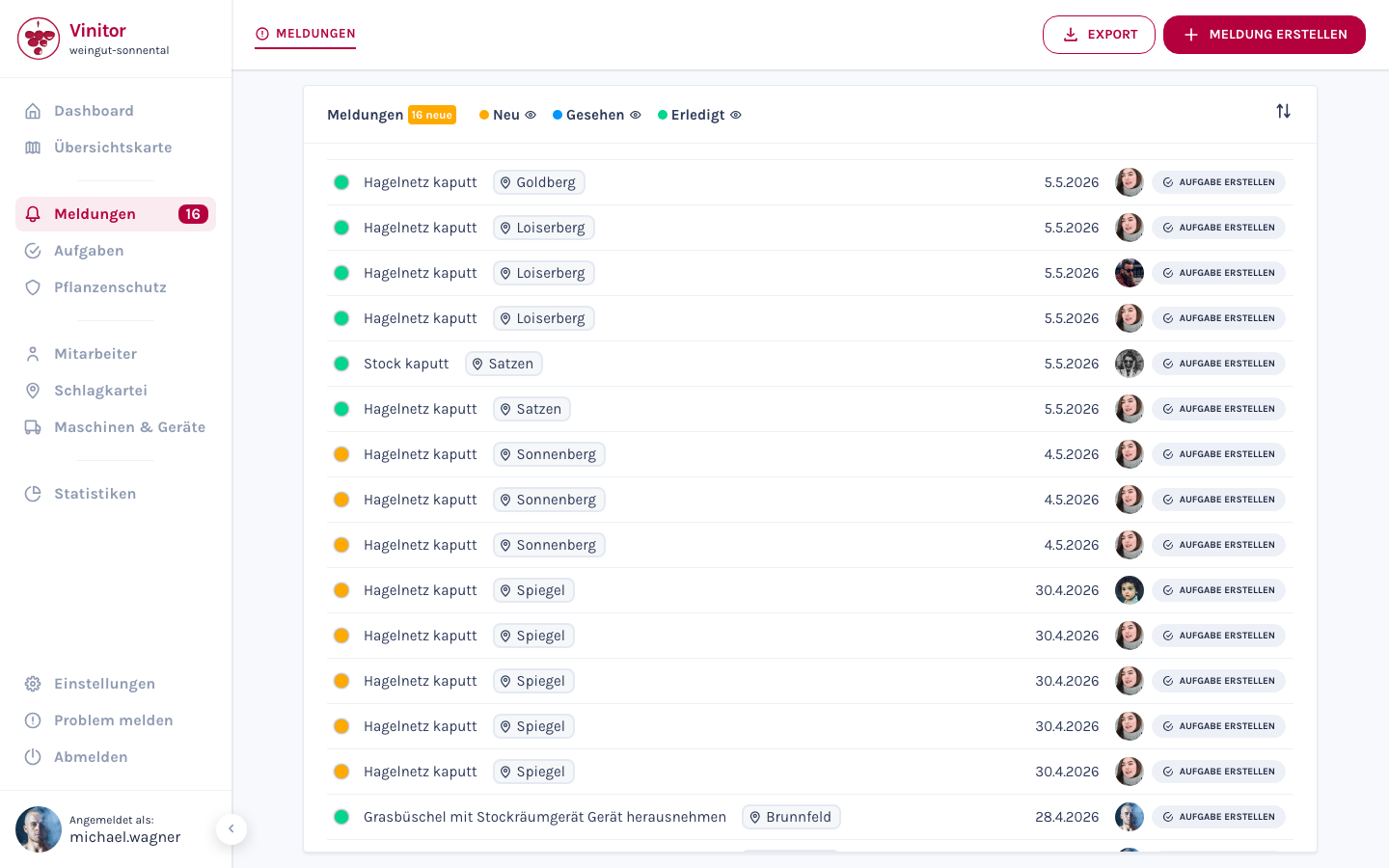
Filter and sort
Section titled “Filter and sort”The report list offers filter chips for the three status categories:
| Filter | Colour | Description |
|---|---|---|
| New | Red | Reports not yet reviewed |
| Seen | Orange | Already reviewed but not yet completed reports |
| Done | Green | Completed reports |
You can show or hide individual categories using the eye icon next to each status. Change the sort order of the list using the sort icon at the top right.
Change status
Section titled “Change status”-
Open report
Click on a report in the list to open the detail view.
-
Review report
Check the basic data, the location on the map and the uploaded images.
-
Update status
Change the status of the report — for example from New to Seen when you have taken note of the incident, or to Done when the incident has been resolved.
Convert to task
Section titled “Convert to task”If a reported incident requires follow-up work, you can convert the report directly into a task. There are two ways:
From the detail view
Section titled “From the detail view”-
Open report
Click on the report in the list.
-
Convert
Click Convert to task at the top right. The task creation form opens with pre-filled data from the report.
-
Complete task
Supplement the task with task type, employees, period and other details. Save the task.
From the list view
Section titled “From the list view”Click directly on Create task in the report row. The task creation form also opens with pre-filled data.
Export
Section titled “Export”Via the Export button at the top right you can export the report list:
| Format | Description |
|---|---|
| Formatted report — suitable for documentation and sharing | |
| CSV | Table format — suitable for further processing in Excel or other tools |
Delete
Section titled “Delete”Open the report in the detail view and click Delete. Confirm the action in the dialog.
Related pages
Section titled “Related pages”SUPPORT
Need help?
Our team is happy to help with any questions about Vinitor.