
Time tracking
Time tracking allows employees to record their working hours in the mobile app, and gives administrators in the dashboard a detailed target/actual evaluation. The comparison is based on the assigned working time model of each employee.
Overview in dashboard
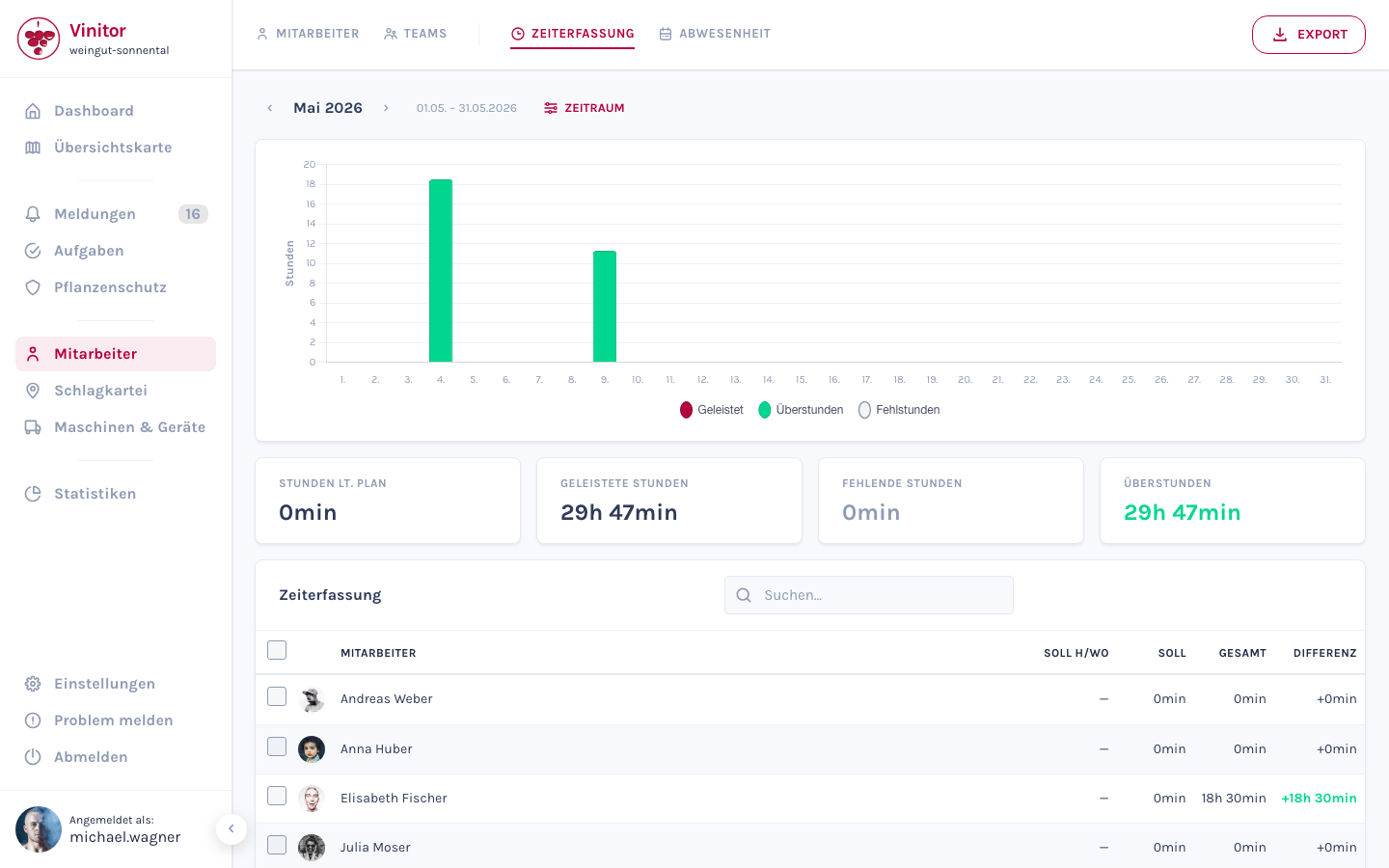
Section titled “Overview in dashboard”The overview page shows the time tracking data of all employees for a selectable period.
Hours chart
Section titled “Hours chart”The bar chart at the top shows three values per employee:
| Bar | Description |
|---|---|
| Worked | Actually worked hours |
| Overtime | Hours above target |
| Missing hours | Hours below target |
Summary cards
Section titled “Summary cards”Four cards summarise the data for the selected period:
| Card | Description |
|---|---|
| HOURS TO PLAN | Target hours based on working time models |
| WORKED HOURS | Sum of all actually recorded working hours |
| MISSING HOURS | Difference between target and actual (if negative) |
| OVERTIME | Difference between actual and target (if positive) |
Employee table
Section titled “Employee table”The table below lists each employee with the following columns:
| Column | Description |
|---|---|
| EMPLOYEE | Name of the employee |
| TARGET H/WK | Target hours per week according to working time model |
| TARGET | Target hours for the selected period |
| TOTAL | Actually worked hours |
| DIFFERENCE | Deviation between target and actual |
Use the search field to find individual employees. Use the EXPORT button to download data as PDF or CSV. Use PERIOD to select a custom evaluation period.
Individual view
Section titled “Individual view”Click on an employee in the table to open the individual view.
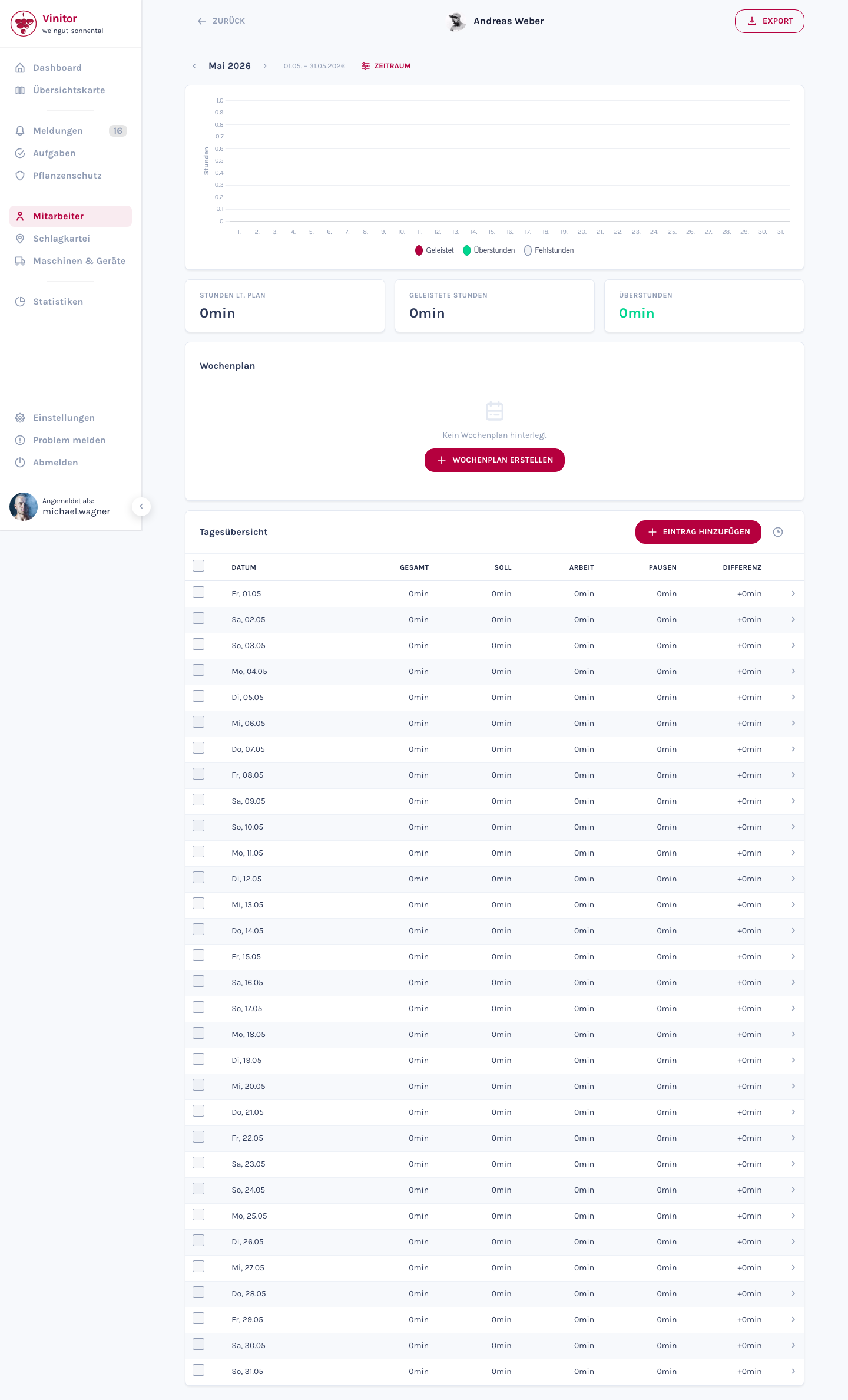
The individual view contains:
- Chart and summary cards — Personal hours chart and three cards with target, actual and difference for the employee.
- Weekly schedule — Shows the employee’s current weekly schedule. Use + CREATE WEEKLY SCHEDULE to create a new weekly schedule if one does not exist.
- Daily overview — Detailed listing of individual work days:
| Column | Description |
|---|---|
| DATE | Day of the entry |
| TOTAL | Total recorded working hours |
| TARGET | Target hours for this day |
| WORK | Pure working time (without breaks) |
| BREAKS | Recorded break time |
| DIFFERENCE | Deviation between target and actual |
Use + ADD ENTRY to manually create a time entry for the employee.
Mobile app
Section titled “Mobile app”In the mobile app employees record their working hours via the Work tab in the bottom navigation:
-
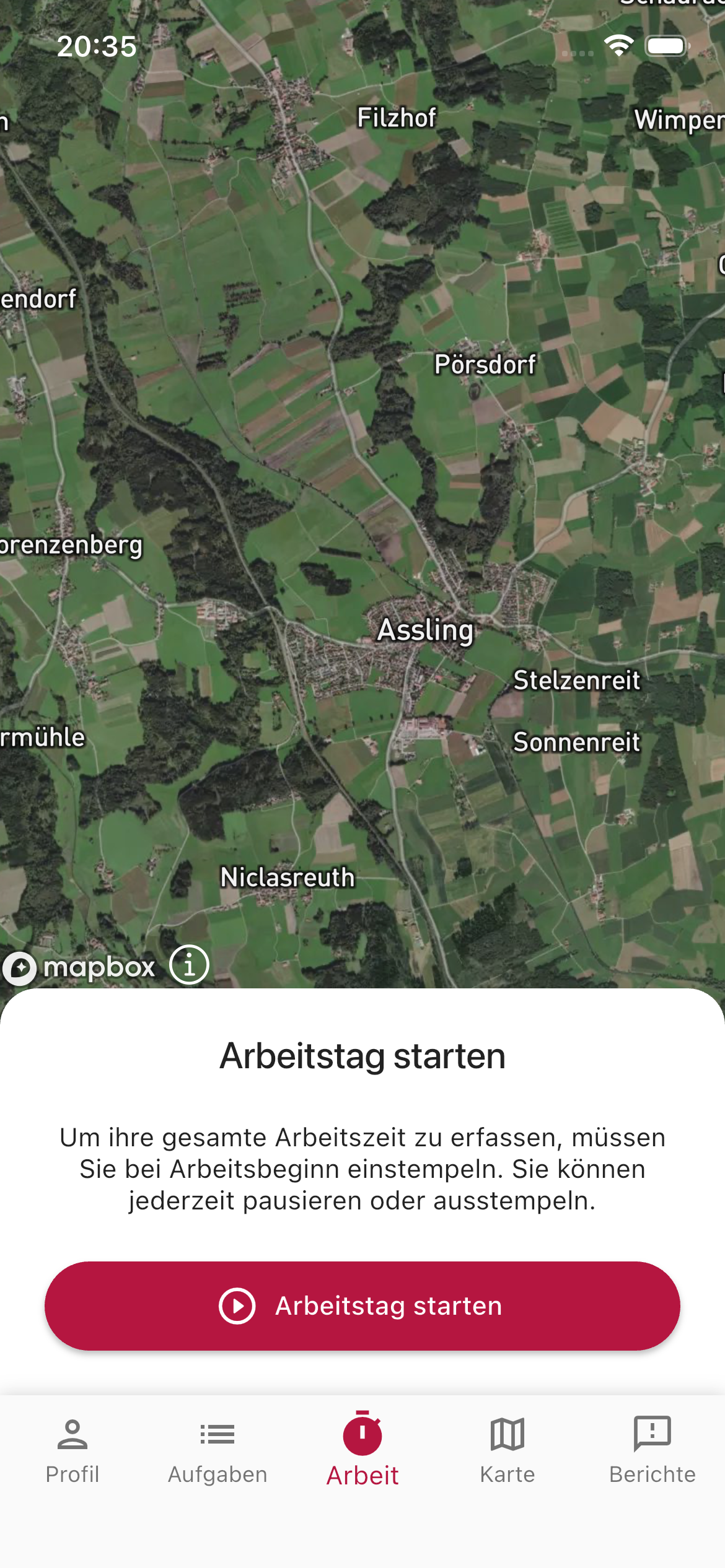
Open Work tab
Tap Work in the bottom navigation and start recording with Start your working day.
-
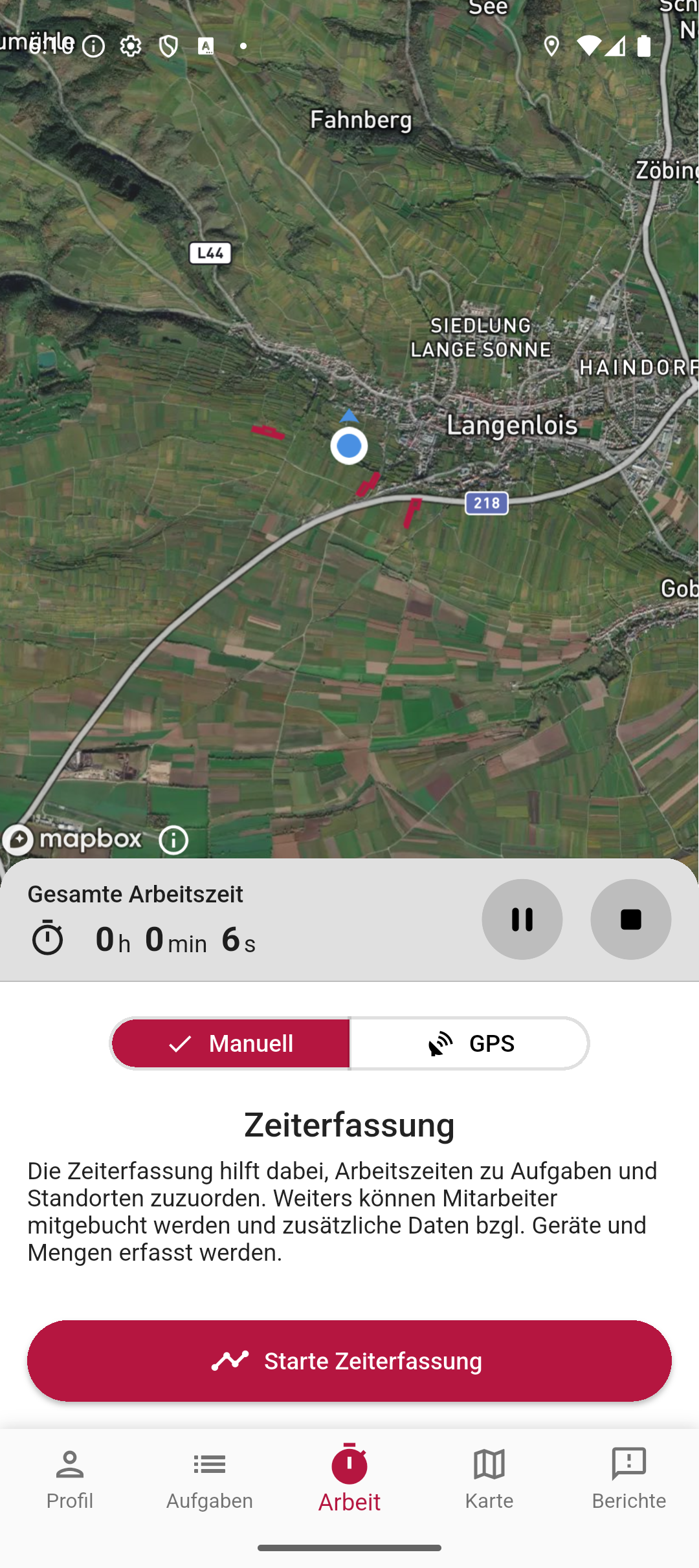
Working time running
The clock starts. Use the toggle to choose between manual time tracking (assign times to tasks and locations yourself) and GPS (automatic assignment via GPS tracking).
-
Record breaks
Use the break button next to the running working time to record breaks during the work day.
-
End work day
End the time recording at the end of the day using the stop button. The data is automatically synchronised and appears in the dashboard evaluation.
Permissions
Section titled “Permissions”| Permission | Description |
|---|---|
| TIME_TRACKING_READ | View time tracking data |
| TIME_TRACKING_EXPORT | Export time tracking data as PDF or CSV |
| TIME_TRACKING_EDIT_OWN | Edit own time entries |
| TIME_TRACKING_EDIT_ALL | Edit time entries of all employees |
| TASK_WRITE | Use time tracking in mobile app (Work tab) |
| GPS_TRACKING_WRITE | Record GPS time tracking in mobile app |
Related pages
Section titled “Related pages”SUPPORT
Need help?
Our team is happy to help with any questions about Vinitor.