
Manage machinery
Machinery refers to larger vehicles and equipment such as tractors, harvesters or front loaders. It’s managed on the same page as equipment — under Machinery & equipment in the sidebar — and appears in the left-hand column of the list view. Compared to equipment, machinery offers additional fields for type designation, number plate and cost tracking.
Create a machine
Section titled “Create a machine”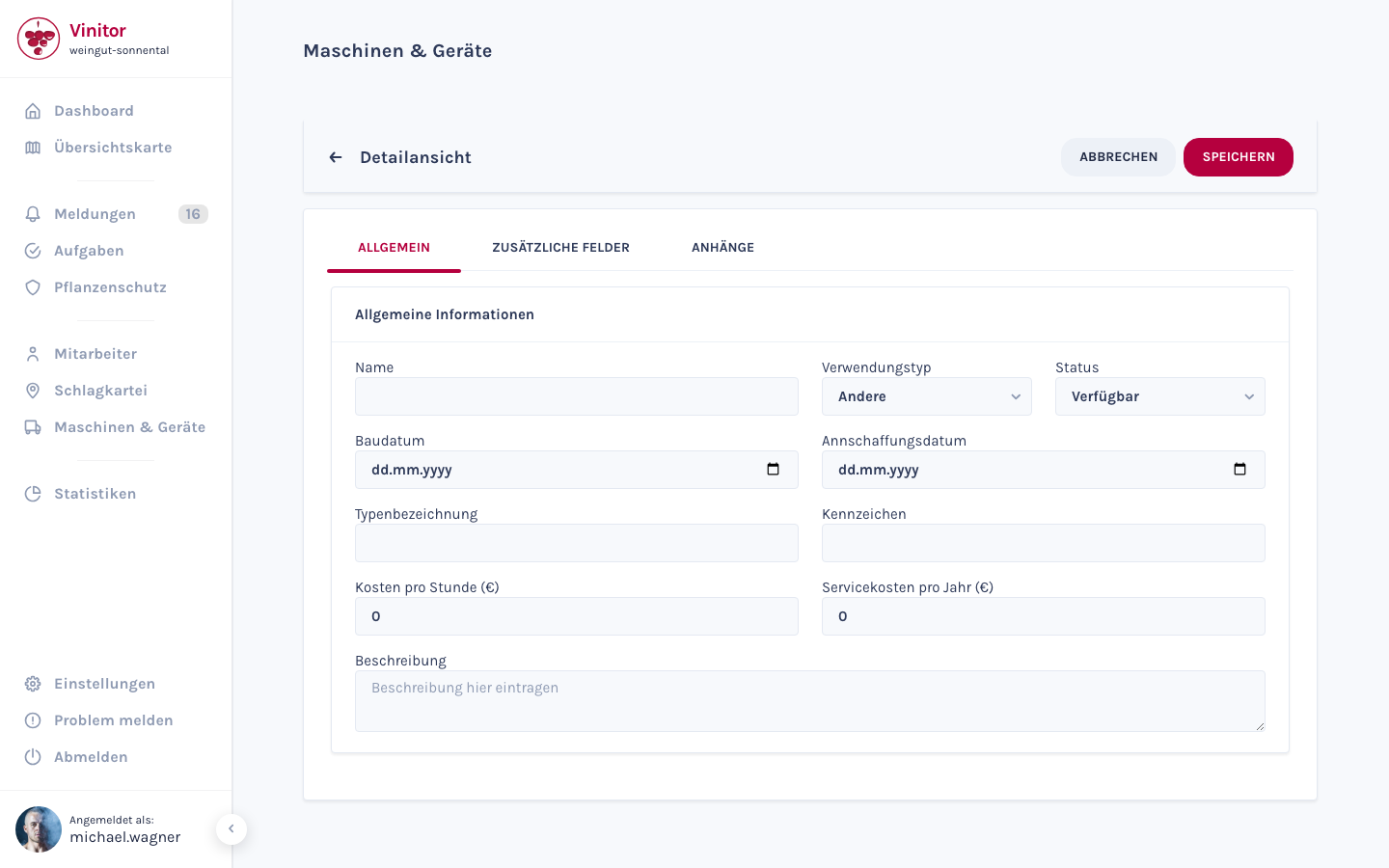
-
Open Machinery & equipment
In the sidebar, navigate to Machinery & equipment.
-
Click CREATE MACHINE
Click CREATE MACHINE in the top right. The creation form opens.
-
Enter a name
Enter a name for the machine (required field).
-
Select a usage type and status
Optionally select a usage type (Seeding, Harvest, Ploughing, Spraying, Miscellaneous) and a status (Available, In use, In repair, Damaged).
-
Fill in the date fields
Optionally enter the build date (date of manufacture) and the acquisition date (date of purchase).
-
Enter the type designation and number plate
Optionally enter the type designation (manufacturer’s type designation) and the number plate (official number plate or registration number).
-
Record costs
Optionally enter the cost per hour (€) (hourly rate for cost calculation) and the service cost per year (€) (annual maintenance costs).
-
Add a description
Optionally add a description in the free-text field.
-
Additional fields and attachments
Switch to the ADDITIONAL FIELDS and ATTACHMENTS tabs to add further data and files.
-
Save
Click SAVE. The machine appears in the machinery column, under the ACTIVE tab.
Field reference
Section titled “Field reference”| Field | Required | Description |
|---|---|---|
| Name | Yes | Name of the machine |
| Usage type | No | Seeding, Harvest, Ploughing, Spraying or Miscellaneous |
| Status | No | Available, In use, In repair or Damaged |
| Build date | No | The machine’s date of manufacture |
| Acquisition date | No | The machine’s date of purchase |
| Type designation | No | Manufacturer’s type designation (e.g. “Fendt 209F”) |
| Number plate | No | Official number plate or registration number |
| Cost per hour (€) | No | Hourly rate for cost calculation |
| Service cost per year (€) | No | Annual maintenance costs |
| Description | No | Free-text description |
Edit a machine
Section titled “Edit a machine”In the list, click the machine you want to open the detail view. Click EDIT, change the fields you need, and click SAVE.
Retire a machine
Section titled “Retire a machine”Use the RETIRE button in the detail view to remove a machine from the active inventory. It then appears in the RETIRED tab and can be reactivated at any time.
Delete a machine
Section titled “Delete a machine”Use the DELETE button in the detail view to permanently remove a machine. This action requires the EQUIPMENT_DELETE permission.
Next steps
Section titled “Next steps”SUPPORT
Need help?
Our team is happy to help with any questions about Vinitor.