
General — Task, material & report types
The General tab is the default tab on the settings page and contains four sections: Display settings, task types, material types and report types.
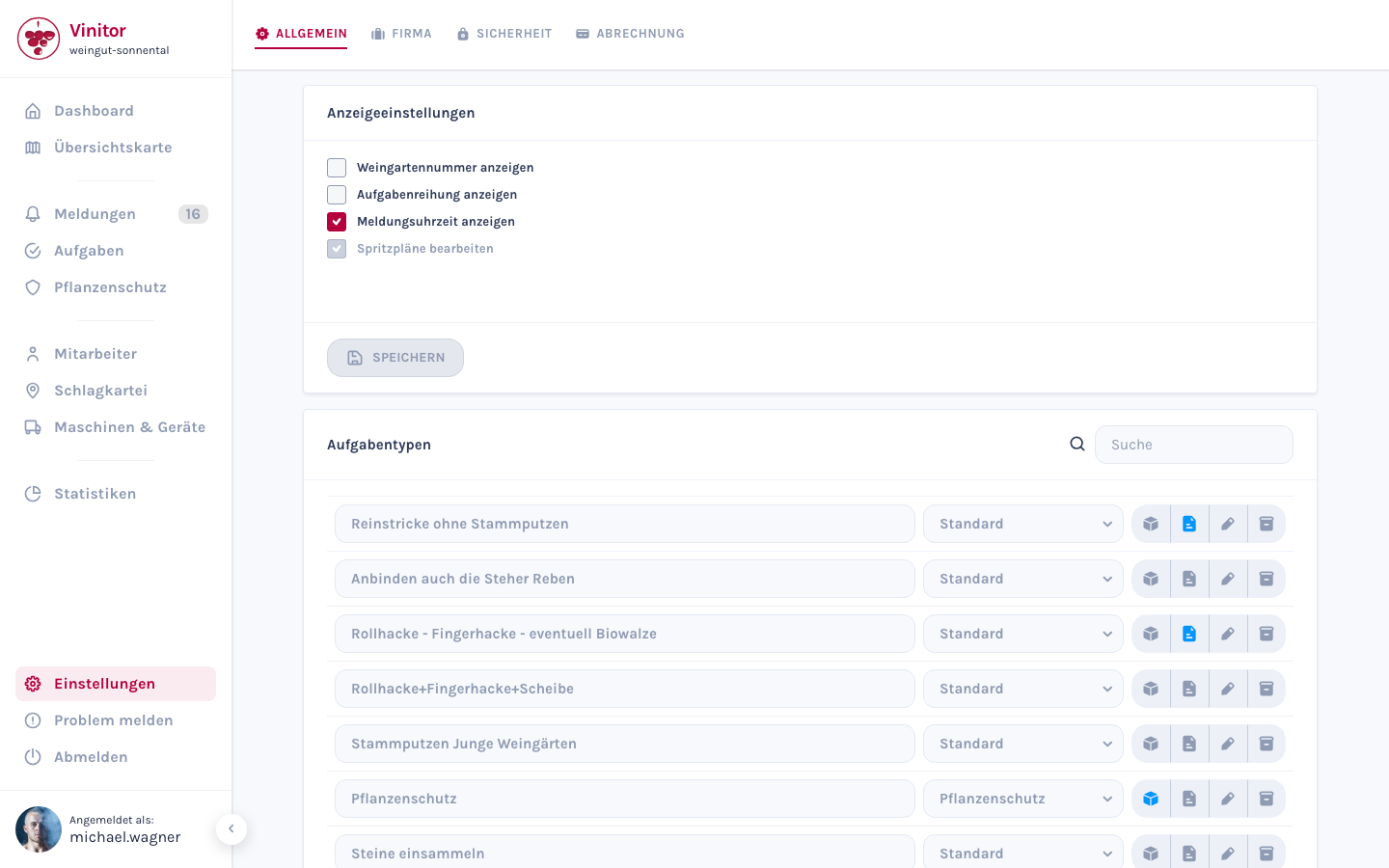
Display settings
Section titled “Display settings”The first card on the tab controls which additional information is displayed in various views:
| Setting | Description |
|---|---|
| Show vineyard number | Shows the vineyard number in lists and on the map |
| Show task ranking | Shows the order of tasks in the task list |
| Show report time | Shows the time for reports in addition to the date |
| Edit spray plans | Allows editing of spray plans after creation |
Changes to the display settings take effect immediately after clicking Save.
Task types
Section titled “Task types”Task types define the category of a task and determine which fields are available in the detail view. Vinitor comes with predefined types that you can customise and extend.
Create task type
Section titled “Create task type”-
Open settings
Navigate to Settings → General tab and scroll to the Task types section.
-
Click Create
Click Create task type. A new input field appears in the list.
-
Enter title
Enter a name for the task type (e.g. “Pruning”, “Soil preparation”).
-
Select category
Choose one of two categories:
Category Description Standard General viticulture work — 6 tabs in the task detail view Plant protection Spraying work — additional plant protection tab (7 tabs in total) -
Save
Confirm with the checkmark button. The new type is immediately available when creating tasks.
Assign materials
Section titled “Assign materials”Material types can be assigned to each task type. These are then displayed as fields when creating tasks.
-
Open material popover
Click the cube icon on an existing task type. A popover with the current material assignment opens.
-
Add material
Select a material type from the Add material type dropdown.
-
Mark as required
Click the star next to a material to mark it as required (filled star = required field).
-
Remove material
Click the X next to a material tag to remove the assignment.
Add description
Section titled “Add description”Click the document icon next to a task type to add or edit a description.
Edit and delete
Section titled “Edit and delete”- Edit — Click the pencil icon to change title and category.
- Delete — Click the archive icon to remove the task type.
Material types
Section titled “Material types”Material types define the materials that can be recorded in tasks (e.g. litres of spray, kilograms of fertiliser). They are assigned to task types and appear as input fields when creating tasks.
Create material type
Section titled “Create material type”-
Click Create
Scroll to the Material types section and click Create material type.
-
Fill in fields
Field Description Material name Name of the material (e.g. “spray”, “fertiliser”) Unit Kilogramme, litre, piece, euro, note or metre Description Optional description of the material -
Save
Confirm with the checkmark button.
Edit and delete
Section titled “Edit and delete”- Edit — Click the pencil icon to change name, unit and description.
- Delete — Click the archive icon to remove the material type.
Report types
Section titled “Report types”Report types categorise reports that employees can create in the field (e.g. “Damage”, “Disease”, “General”).
Create report type
Section titled “Create report type”-
Click Create
Scroll to the Report types section and click Create report type.
-
Enter title
Enter a name for the report type.
-
Save
Confirm with the checkmark button.
Edit and delete
Section titled “Edit and delete”- Edit — Click the pencil icon to change the title.
- Delete — Click the archive icon to remove the report type.
Permissions
Section titled “Permissions”| Permission | Access to |
|---|---|
TASK_WRITE | Create, edit and delete task types and material types |
REPORT_WRITE | Create, edit and delete report types |
Related pages
Section titled “Related pages”SUPPORT
Need help?
Our team is happy to help with any questions about Vinitor.