
Billing & modules
In the Billing tab you manage your Vinitor subscription. Vinitor uses a modular pricing model — you choose only the modules you need and pay per hectare of vine area.
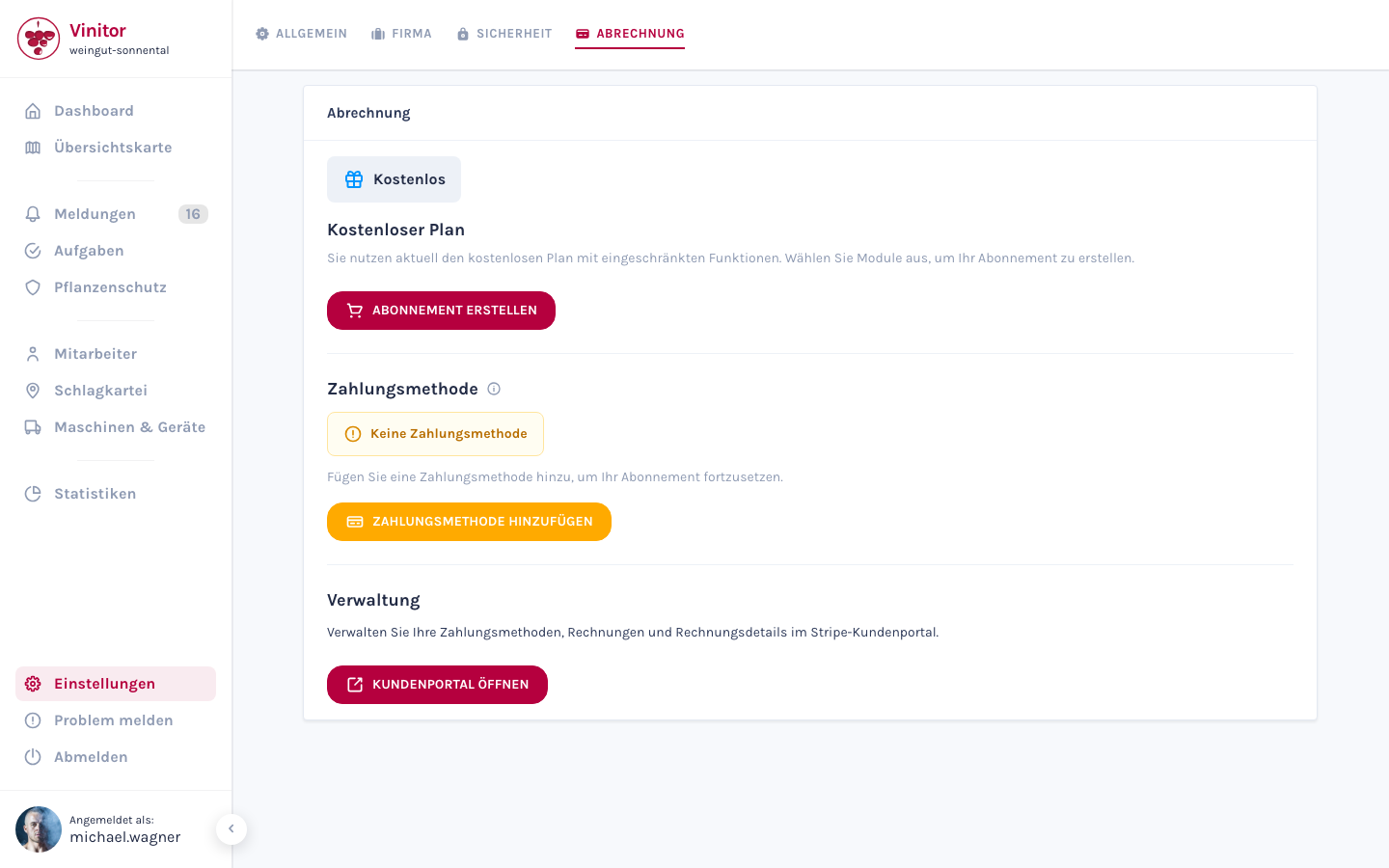
Subscription status
Section titled “Subscription status”At the top of the page, a status badge shows the current state of your subscription:
| Status | Description |
|---|---|
| Free | No active subscription — limited features, no paid modules |
| Trial period | Trial phase with full module access — the end date and the estimated costs after the trial are shown |
| Active | Active subscription with billing period, next billing date and estimated costs |
| Payment due | A payment has failed and is being retried. Your module access is retained during this time. The section is called Payment overdue |
| Cancelled | Subscription has been cancelled — you can create a new one at any time |
| Suspended | The payment attempts have been exhausted — the paid modules are disabled until the outstanding invoice is settled. A paused subscription is also shown here |
When a payment fails
Section titled “When a payment fails”Vinitor does not suspend your account on the first failed payment attempt. The process is staged:
-
Payment due — access is retained
If a charge fails, the status switches to Payment due and you receive an email. The payment is automatically retried several times over the following days. All modules remain usable during this time.
-
Suspended — paid modules are dormant
If every attempt remains unsuccessful, the account switches to Suspended. The paid modules are disabled; the three free modules remain available. Your data is retained in full.
-
Reactivation — automatic
As soon as the outstanding invoice is paid, your account is reactivated automatically and all booked modules are immediately available again. You receive a confirmation email about it. There is no need to contact support, and your subscription does not have to be created again.
Modules
Section titled “Modules”Three modules are free and always active — they are available to every business without a subscription:
| Module | Description |
|---|---|
| Field record book | Create, edit and organise vineyards in groups |
| Employee management | Create user accounts, assign roles and manage teams |
| Vineyard import | Import vineyards from external systems (eAMA, FIONA, LAFIS, LEA, LAWIS+) |
In addition, Vinitor offers eight paid modules that you can activate individually:
| Module | Description |
|---|---|
| Task management | Create, assign and manage tasks |
| Task table | Tabular overview of all tasks |
| Map overview | Geographic view of your vineyards and tasks |
| GPS tracking | Real-time location tracking of machinery and employees |
| Statistics | Analyses and evaluations |
| Equipment management | Manage machinery and equipment |
| Plant protection | Spray plans, active substances and plant protection records |
| Reports | Create and export reports |
Create or change a subscription
Section titled “Create or change a subscription”-
Open the module dialog
Click Create subscription (on the free plan) or Change subscription (with an existing subscription).
-
Select modules
In the dialog, all available modules with their estimated costs are displayed. Enable or disable the desired modules using the checkboxes.
-
Review the cost comparison
When making a change, you see a comparison of current and new monthly costs as well as the added and removed modules.
-
Confirm
Click Confirm to apply the changes. For a new subscription you are redirected to Stripe to complete the payment.
Payment method
Section titled “Payment method”In the Payment method section you can see whether a payment method is stored, and can add or update it:
- Add payment method — You are redirected to Stripe to enter your payment details securely.
- Update payment method — Change your existing payment method via Stripe.
Management
Section titled “Management”Via the Open customer portal button you access the Stripe customer portal. There you can:
- View and download invoices
- Manage payment methods
- Change invoice details (address, business name)
Cancel a subscription
Section titled “Cancel a subscription”-
Initiate the cancellation
In the Cancel subscription section, click Cancel subscription.
-
Confirm
Confirm the cancellation in the dialog.
Permissions
Section titled “Permissions”| Permission | Access to |
|---|---|
BILLING_MANAGE | Create, change and cancel the subscription, manage the payment method, open the customer portal |
Related pages
Section titled “Related pages”SUPPORT
Need help?
Our team is happy to help with any questions about Vinitor.