
LEA (Rhineland-Palatinate)
This guide shows you how to export parcel data (shape files) from the LEA system (formerly FLOrlp) and import it into Vinitor.
Export from LEA
Section titled “Export from LEA”-
Log in to LEA
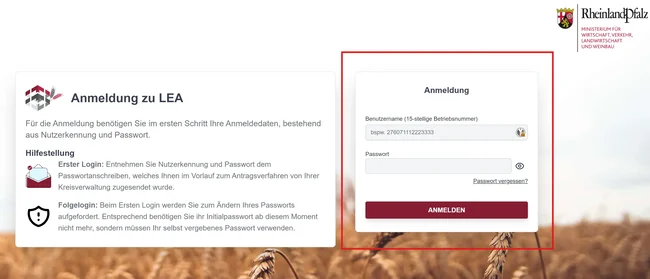
Visit the LEA portal and log in with your 15-digit business number and your password.
-
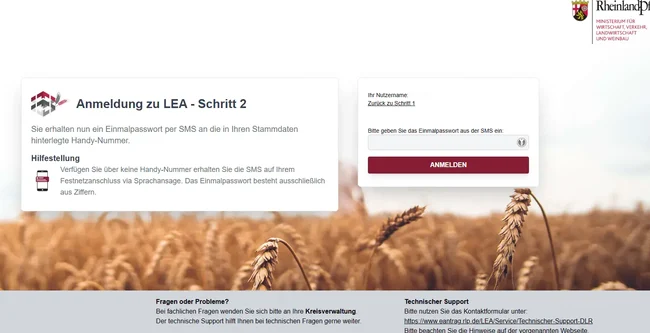
Enter the one-time password
You’ll receive an SMS with a one-time password to your registered phone number. Enter this code and click “Anmelden” (log in).
-
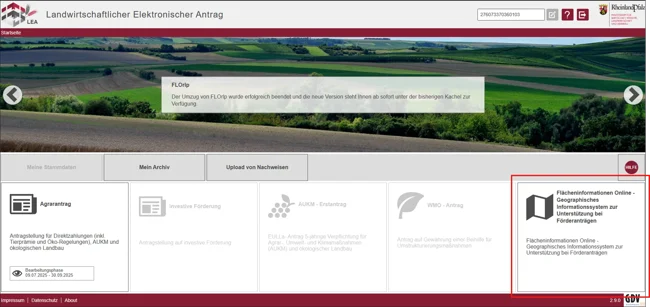
Switch to “Flächeninformationen Online” (area information online)
After logging in successfully, you’ll see the LEA homepage. Scroll down to the application tiles and click “Flächeninformationen Online” (formerly FLOrlp).
-
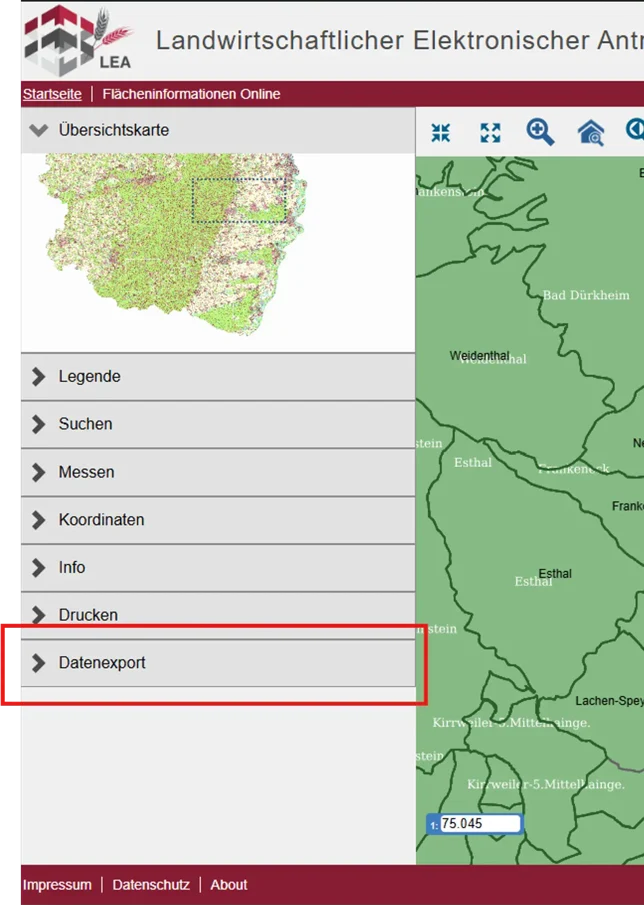
Open “Datenexport” (data export)
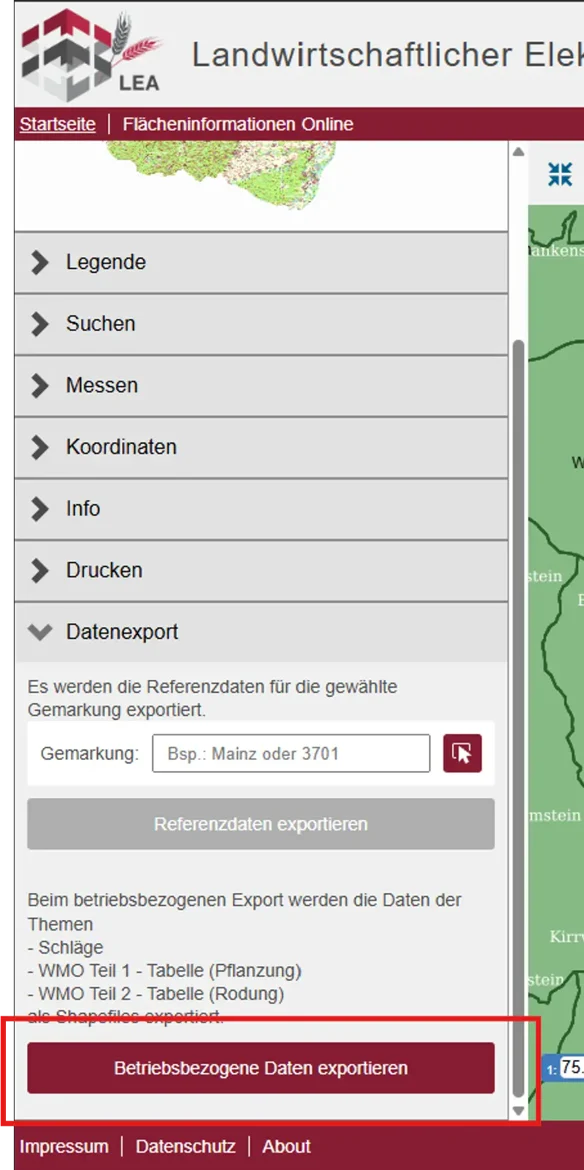
In the left-hand navigation bar you’ll find various menu items. Scroll down and click “Datenexport” to open the export functions.
-
Click “Betriebsbezogene Daten exportieren” (export business-related data)
The menu expands. You’ll see various export options. Click the “Betriebsbezogene Daten exportieren” button to download your shape files.
-
Save the ZIP file
The ZIP file is automatically downloaded to your default download folder. Note the save location for the next step.
The ZIP file contains the following shapefile components:
Schlaege.shp— Geometry data of the plotsSchlaege.shx— Spatial indexSchlaege.dbf— Attribute dataSchlaege.prj— Coordinate systemWMO_Teil1_Pflanzung.shp/.shx/.dbf/.prj— Planting dataWMO_Teil2_Rodung.shp/.shx/.dbf/.prj— Grubbing-up data
-
Import the ZIP file into Vinitor
Open the Vinitor Dashboard and navigate to the Field record book. Click Import in the top right, select LEA (Rhineland-Palatinate) as the import source, upload the ZIP file and click “Import”.
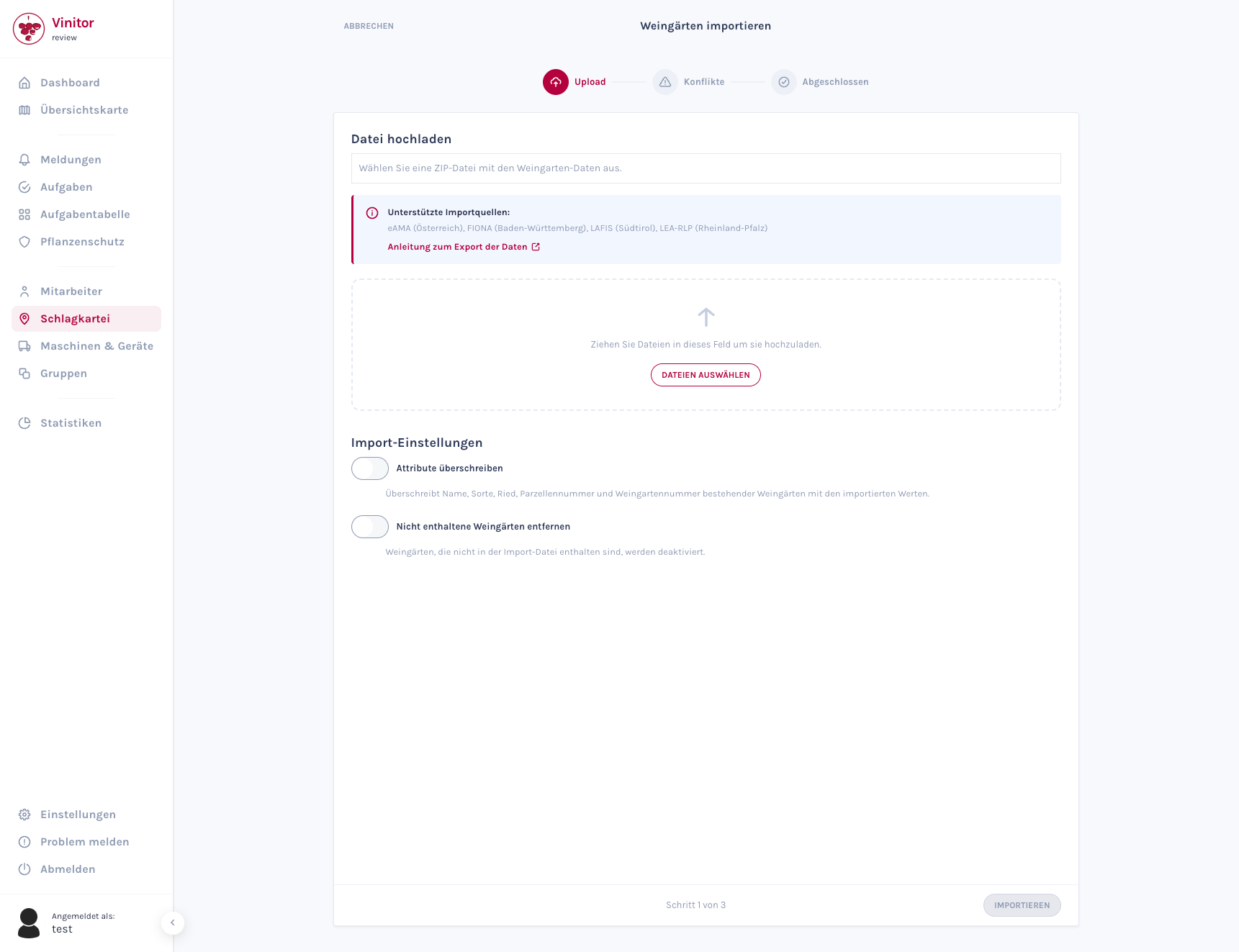
The wizard guides you through the import in three steps. For detailed information about the import wizard, see Import vineyards.
Frequently asked questions
Section titled “Frequently asked questions”The SMS with the one-time password doesn’t arrive? Check that your phone number is correctly registered in LEA. Contact your district administration if the problem persists.
Can I export data from multiple businesses? Yes, but you’ll need to log in separately with the respective business numbers and perform the export individually.
In which format is the data exported? LEA exports the data as a shapefile (.shp) in the ETRS89 / UTM Zone 32N coordinate system. Vinitor supports this format.
SUPPORT
Need help?
Our team is happy to help with any questions about Vinitor.