
Create a task
A new task is created via the Create new task form. There you choose the task type, set the period and priority, assign employees and vineyards, and optionally add a description, custom fields and equipment.
Create the task
Section titled “Create the task”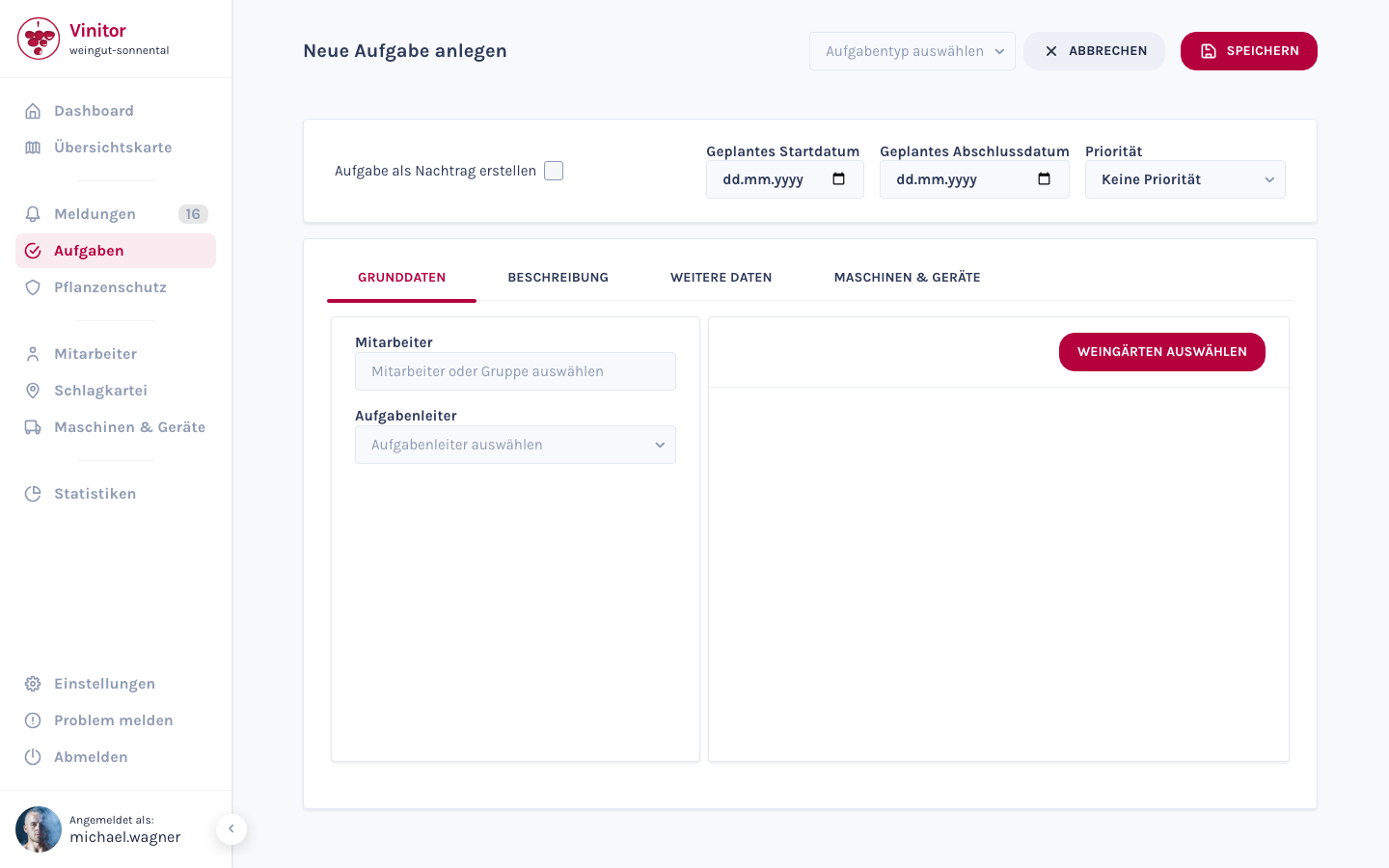
-
Open the tasks page
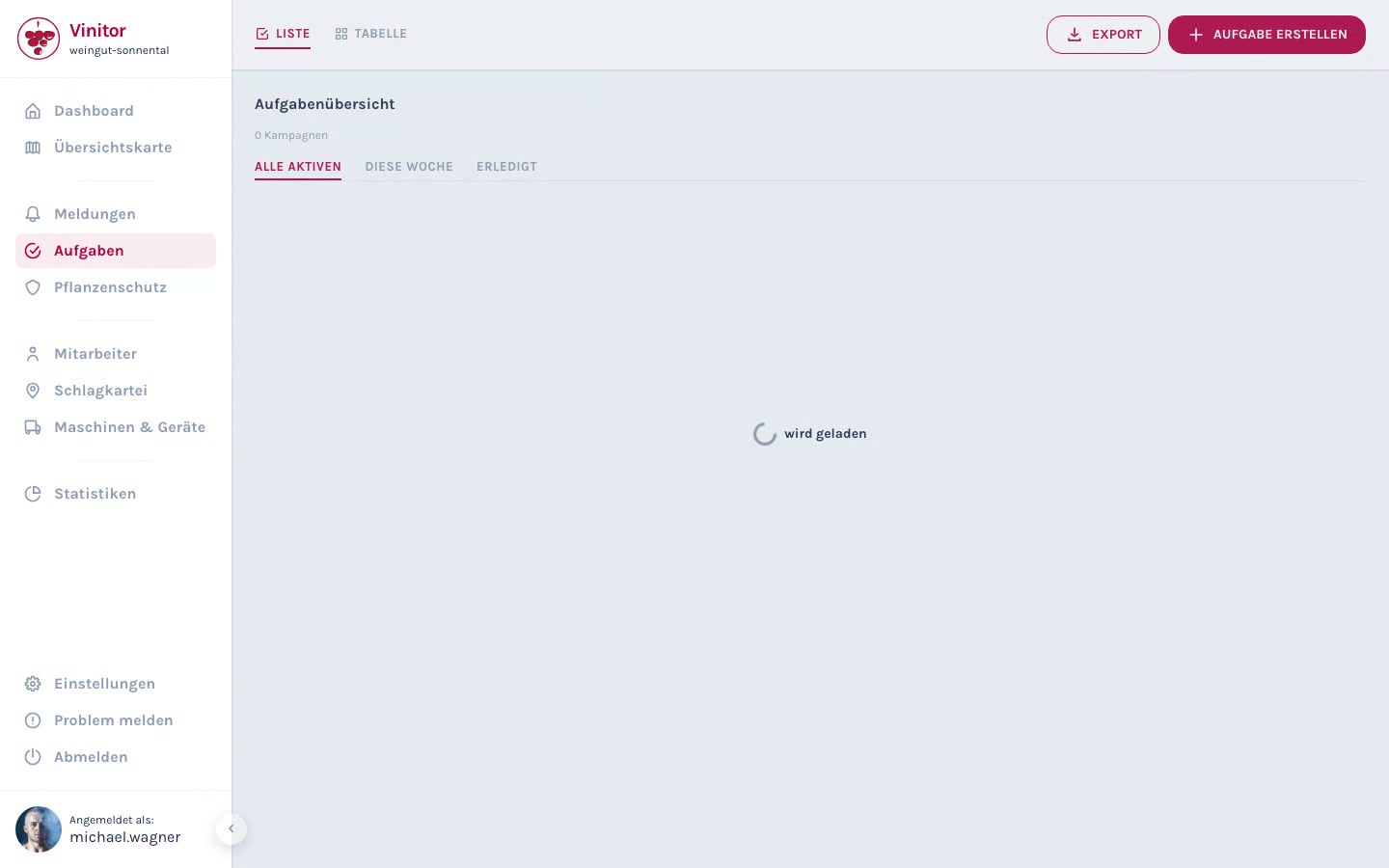
In the sidebar, navigate to Tasks. You’ll see your existing campaigns in the task overview.
-
Click Create
Click Create task in the top right. The Create new task form opens.
-
Select the task type
At the very top, select the appropriate task type (e.g. pruning, canopy work, harvest). As long as no type is selected, the hint Select a task type to continue is shown — the remaining sections only appear afterwards, and Save stays disabled.
The task type determines which additional fields are available under Additional data. If a type is missing, the Manage task types link takes you straight to the settings. More on this under Task types.
-
Set the scheduling (Scheduling section)
Choose in the toggle between Planned and Retroactive:
- Planned — Optionally enter a planned start date and a planned completion date, and choose a priority.
- Retroactive — Record work that has already been done, using Completed on plus From and Until.
-
Assign employees and a task lead (Team section)
Assign employees by entering names or selecting an employee group. Then choose a task lead — this is a mandatory field and can only be filled once at least one employee is assigned.
-
Assign vineyards (Vineyards section)
Click Select vineyards and choose the vineyards in which the work is to be carried out. The selected vineyards appear underneath as the Work sequence list — its order determines the sequence in which the vineyards are worked through.
-
Fill in the optional fields
Below the Optional fields divider you’ll find three expandable areas:
- Description — Free text for special instructions or notes (Enter description here).
- Additional data — Custom fields of the selected task type (e.g. Litres applied, Kilograms harvested) via Add field….
- Machinery & equipment — Machinery & equipment needed for the work.
-
Save
Click Save. Vinitor creates one task per selected vineyard and bundles them into a campaign. The tasks start with the status Upcoming — for a Retroactive entry, directly with Done.
Field reference
Section titled “Field reference”| Field | Required | Description |
|---|---|---|
| Task type | Yes | Determines the category and available additional fields |
| Planned start date | No | Planned start of the work |
| Planned completion date | No | Planned end of the work |
| Priority | No | Six levels from Very High Priority to No Priority (default: No Priority) |
| Employees | No | Individual employees or groups who carry out the work |
| Task lead | Yes | Person responsible — must be chosen from the assigned employees |
| Vineyards | Yes | One or more vineyards — one task is created per vineyard |
| Description | No | Free-text description with instructions or notes |
| Additional data | No | Custom fields depending on the task type |
| Machinery & equipment | No | Assigned equipment and machinery |
Priority levels
Section titled “Priority levels”| Priority | Use |
|---|---|
| Very High Priority | Highest urgency — takes precedence over everything else |
| High Priority | Urgent — requires immediate attention |
| Medium Priority | Should be done soon |
| Low Priority | Can wait, but shouldn’t be forgotten |
| Very Low Priority | Only when there is spare capacity |
| No Priority | Default value — no particular urgency |
The priority can be changed at any time afterwards — on the task detail page, in the cell popover of the task table, or in bulk for several vineyards via the action bar of an expanded campaign.
Vineyard assignment
Section titled “Vineyard assignment”Select a single vineyard from the list. The campaign then contains exactly one task, and the location is shown on the map in the detail view.
Select several vineyards to plan one pass of work for a whole site or region. Vinitor creates one task per vineyard. In the task overview you expand the campaign and see the progress per vineyard.
Create a retroactive entry
Section titled “Create a retroactive entry”Use the Retroactive toggle in the Scheduling section to record work after the fact. This is useful when work has already been done but hasn’t yet been documented in the system.
For a retroactive entry, all tasks in the campaign are created directly with the status Done. The recorded time span between From and Until is distributed across the vineyards in proportion to their vine area.
Other ways to create tasks
Section titled “Other ways to create tasks”Besides the creation form there are two shortcuts:
- Cell popover of the task table — Click an empty cell in the campaign matrix and create a task there directly with Target date, Employees and Description.
- Add vineyard — Use the ⋮ menu of a campaign to take on further vineyards; one new task is created per vineyard within the same campaign.
SUPPORT
Need help?
Our team is happy to help with any questions about Vinitor.