
Organise with groups
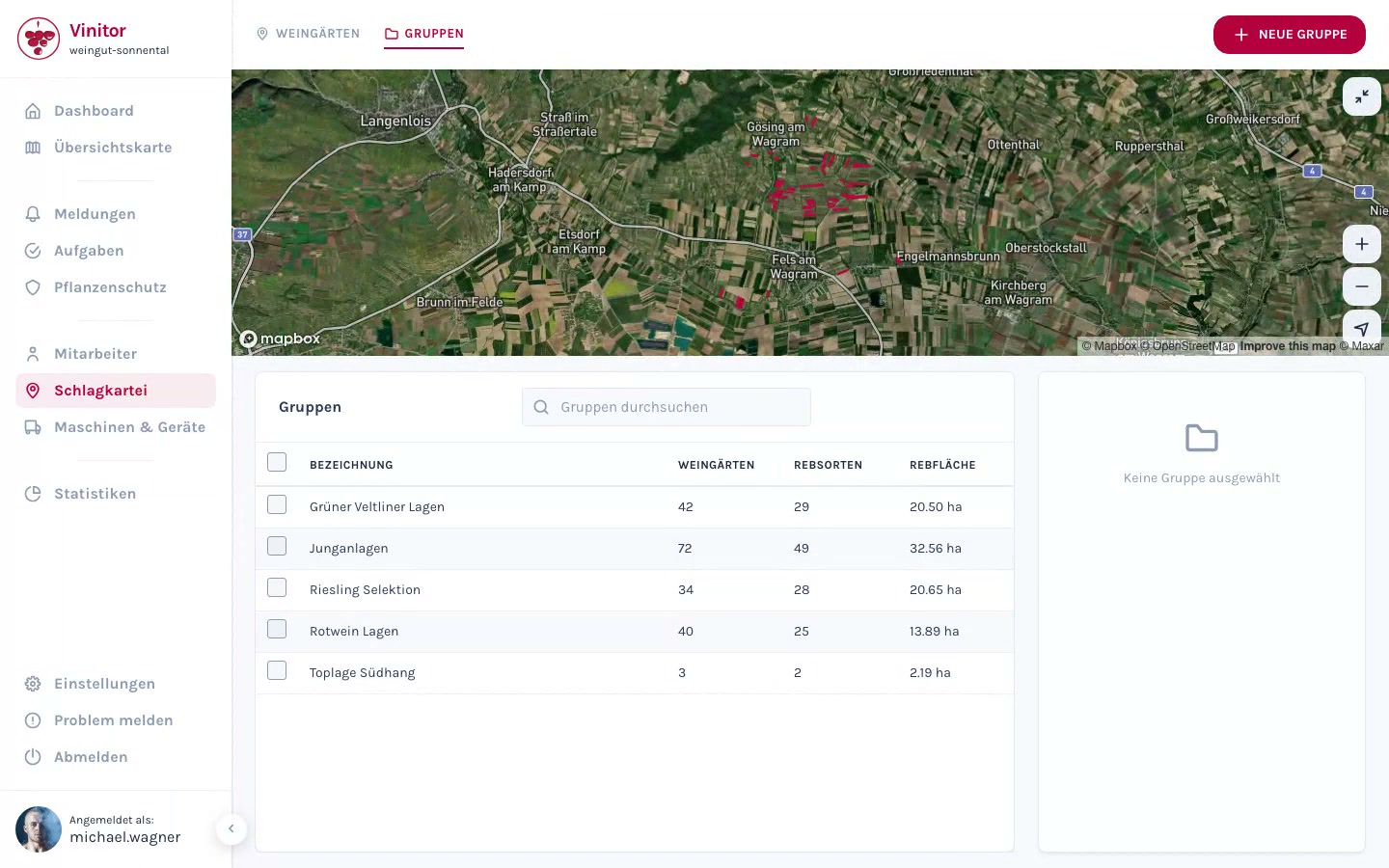
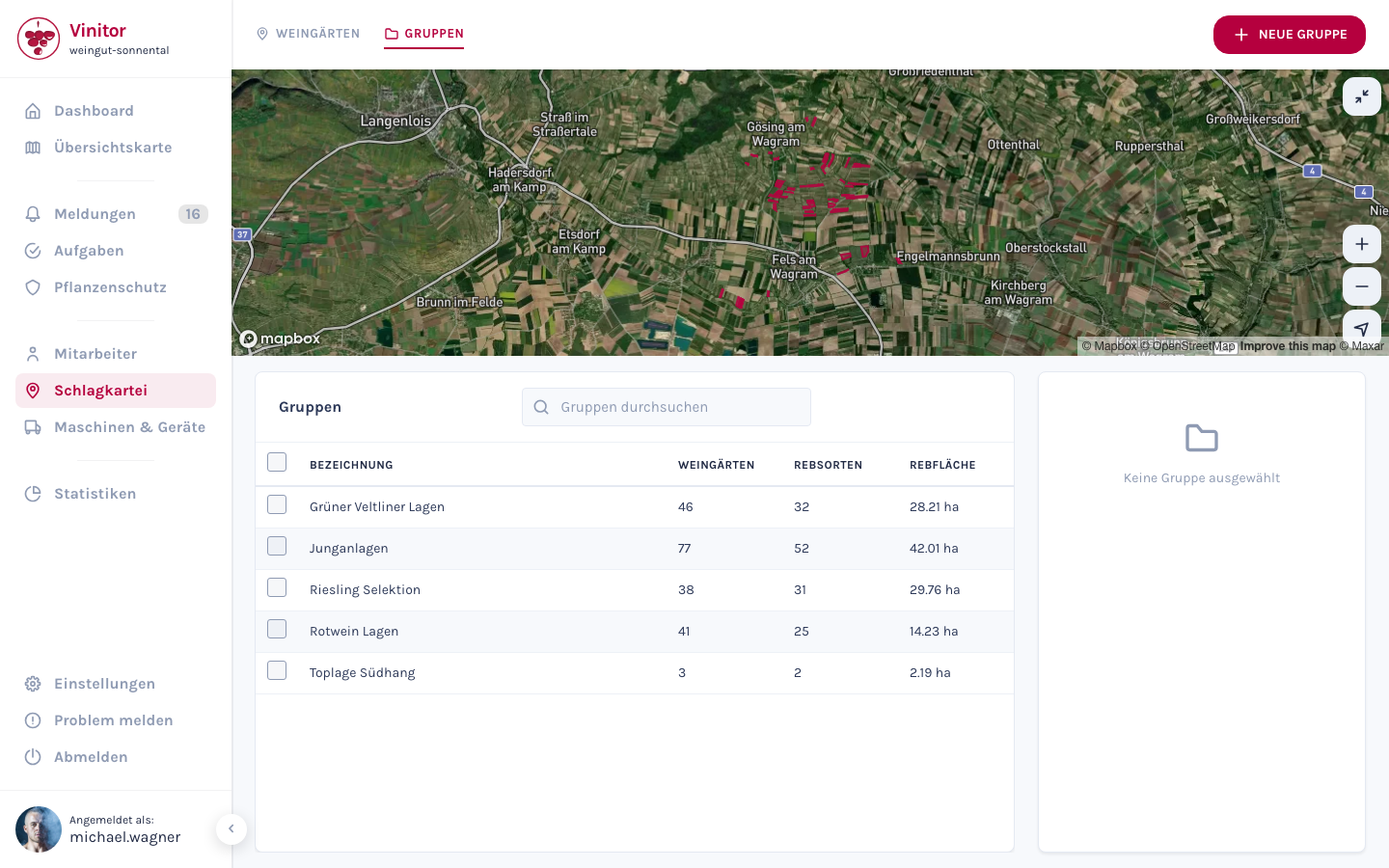
Groups help you organise vineyards by any criteria you choose — for example by site, grape variety, management type or work area. A group combines several vineyards and shows their combined area as well as their position on the map.
Create a group
Section titled “Create a group”-
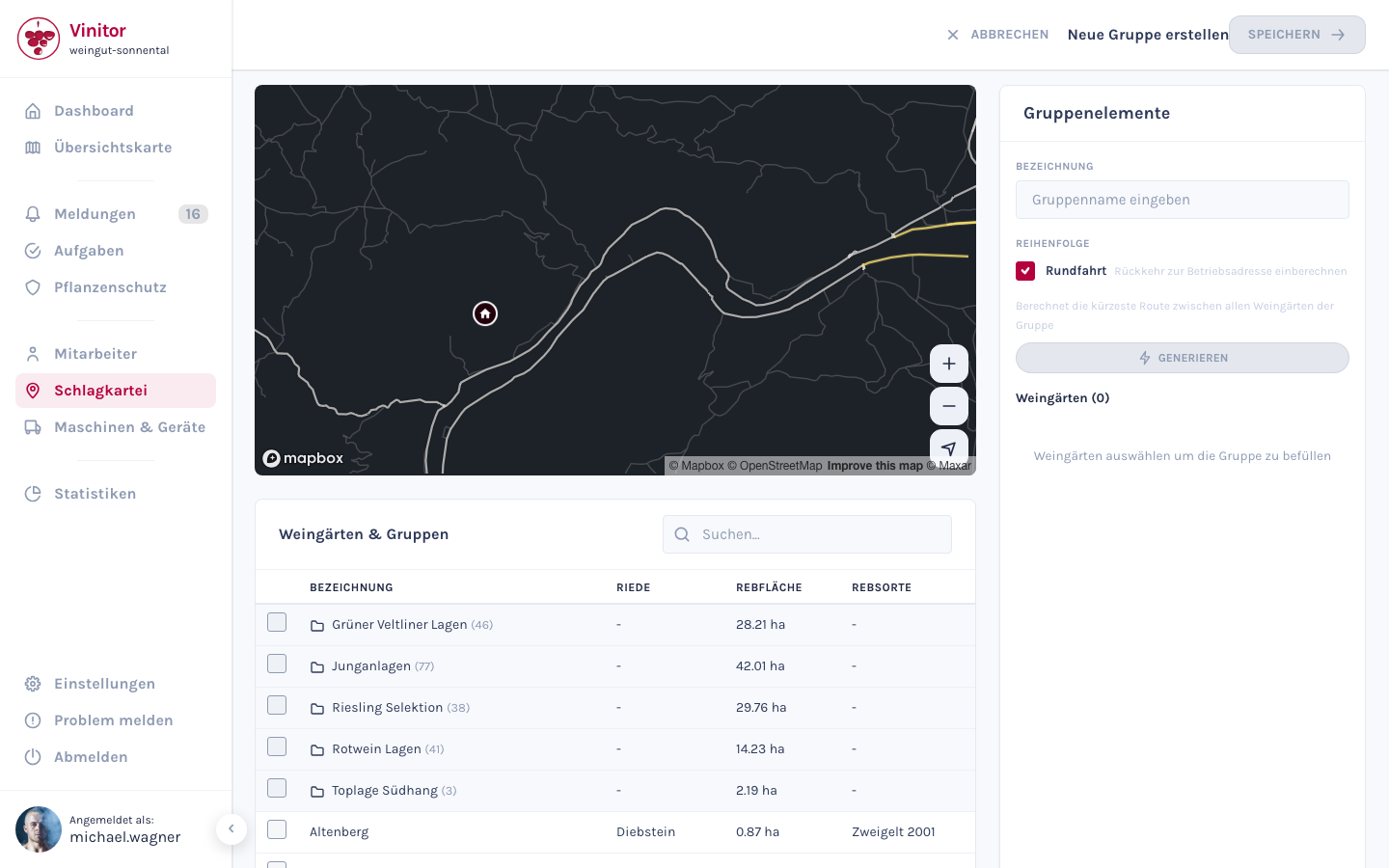
In the field record book, switch to the Groups tab.
-
Click New group in the top right.
-
Give the group a name (e.g. “Grüner Veltliner sites” or “South-facing slope”).
-
Select the vineyards to be assigned to the group. In the left-hand area, you’ll see all available vineyards and existing groups — click the checkboxes to add them to the new group. You can also select entire existing groups to take over all of their members.
-
Optional: arrange the vineyards in the desired order by drag-and-drop — this is helpful for route planning.
-
Click Save.
Edit a group
Section titled “Edit a group”In the group details, click Edit to switch to edit mode:
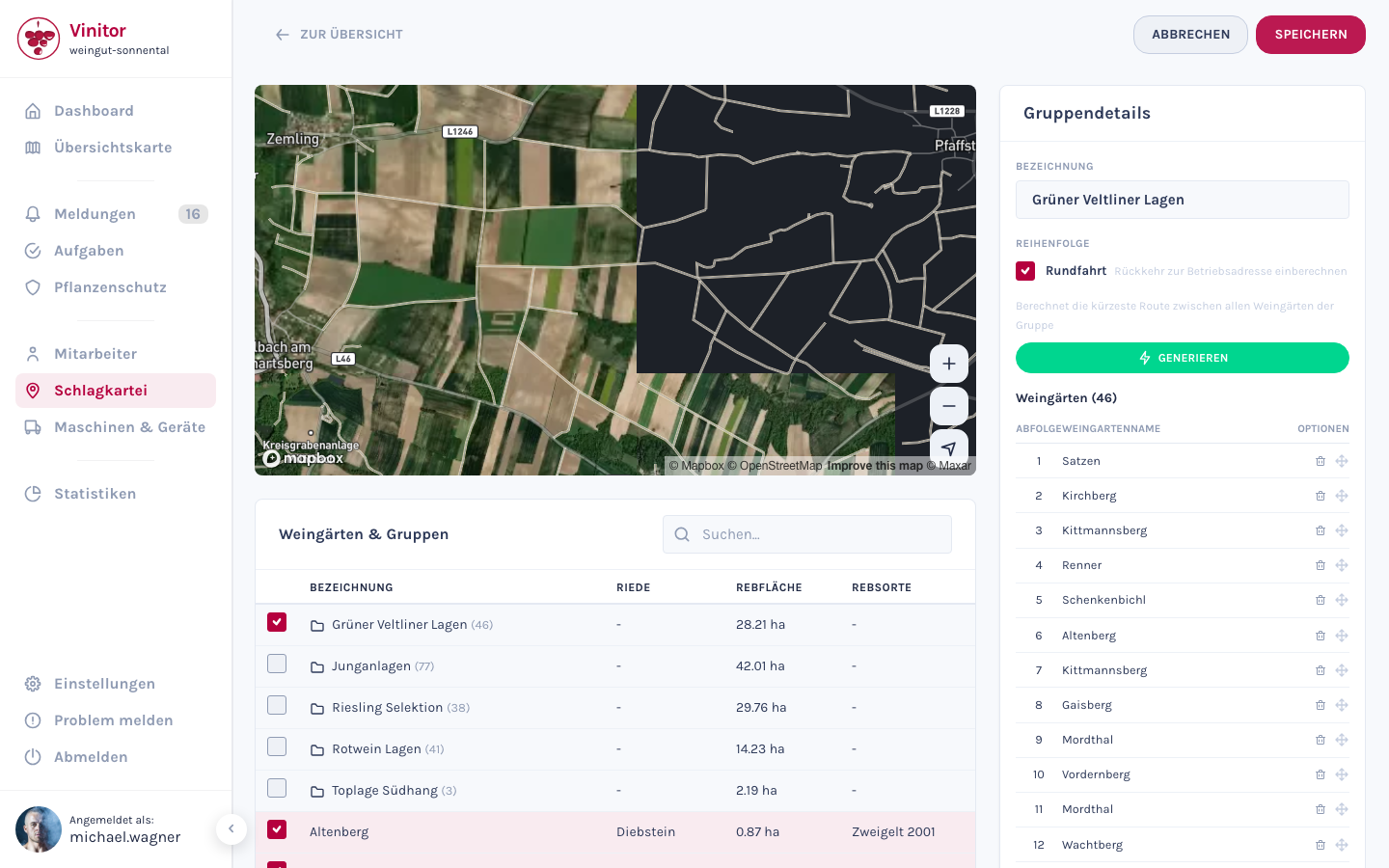
In edit mode, you can:
- Change the group name — edit the Name field in the right-hand area.
- Add vineyards — select further vineyards or entire groups using the checkboxes in the left-hand area.
- Remove vineyards — click the bin icon next to a vineyard in the list on the right.
- Change the order — drag and drop vineyards into the order you want.
Click Save to apply the changes.
Use route optimisation
Section titled “Use route optimisation”When creating or editing a group, you can use route optimisation:
-
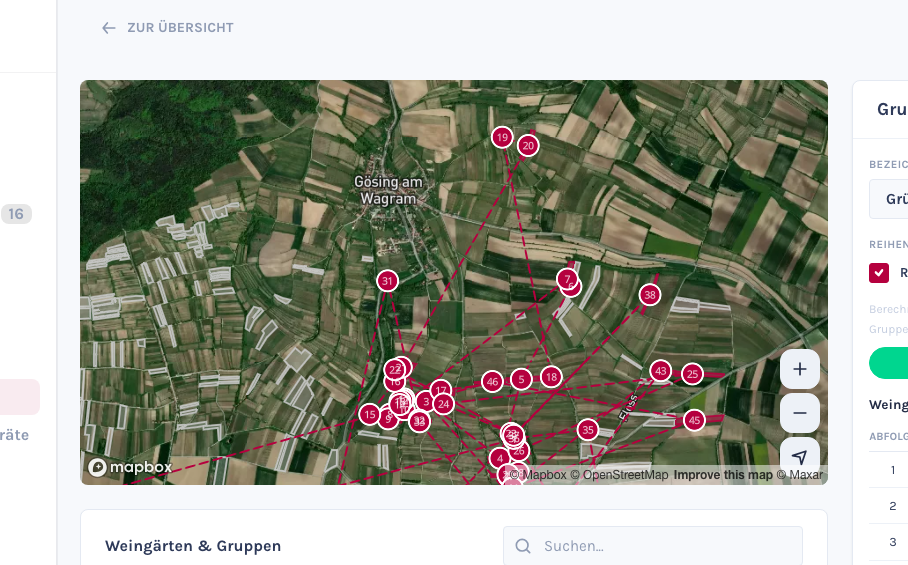
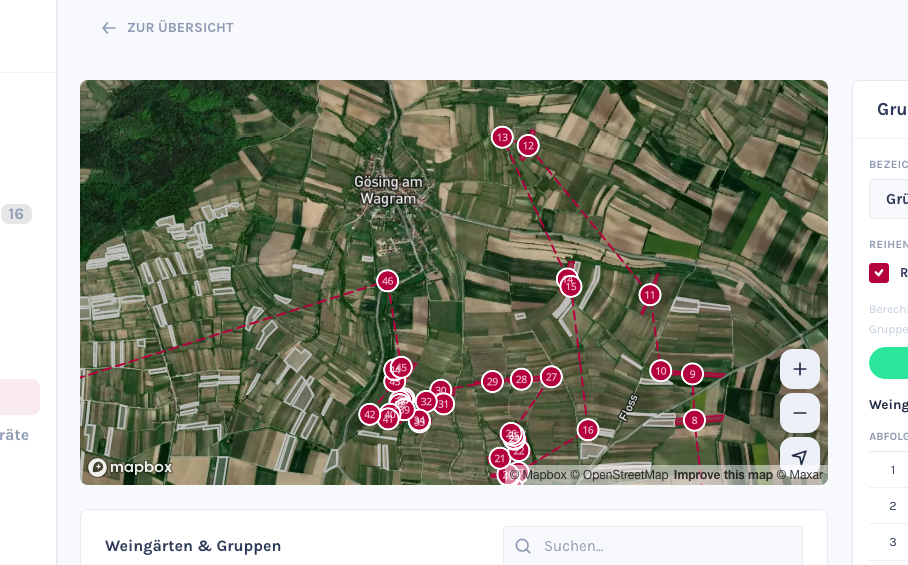
Enable the Round trip option to include the return to the business address in the calculation.
-
Click Generate — Vinitor calculates the optimal order based on the vineyards’ GPS positions.
Delete a group
Section titled “Delete a group”To delete a group, open the group details and click Delete. Only the group itself is deleted — the vineyards it contains remain unchanged.
Result
Section titled “Result”After creation, the group appears in the group overview with the number of vineyards, grape varieties and combined area. You can use the group directly when creating spray plans, to automatically assign all its vineyards.
Next steps
Section titled “Next steps”Related documentation
Section titled “Related documentation”SUPPORT
Need help?
Our team is happy to help with any questions about Vinitor.