
Use task suggestions
After a GPS tracking session ends, Vinitor automatically analyses the recorded route, matches it against the vineyard polygons, and suggests matching tasks. This guide shows how to review and confirm the suggestions in the mobile app.
Prerequisites
Section titled “Prerequisites”- GPS tracking was started and stopped in the mobile app — see Start GPS tracking
- Vineyards are drawn on the map with area polygons
- TASK_READ permission via the assigned role (for the tracking itself, GPS_TRACKING_WRITE)
Review and confirm suggestions
Section titled “Review and confirm suggestions”-
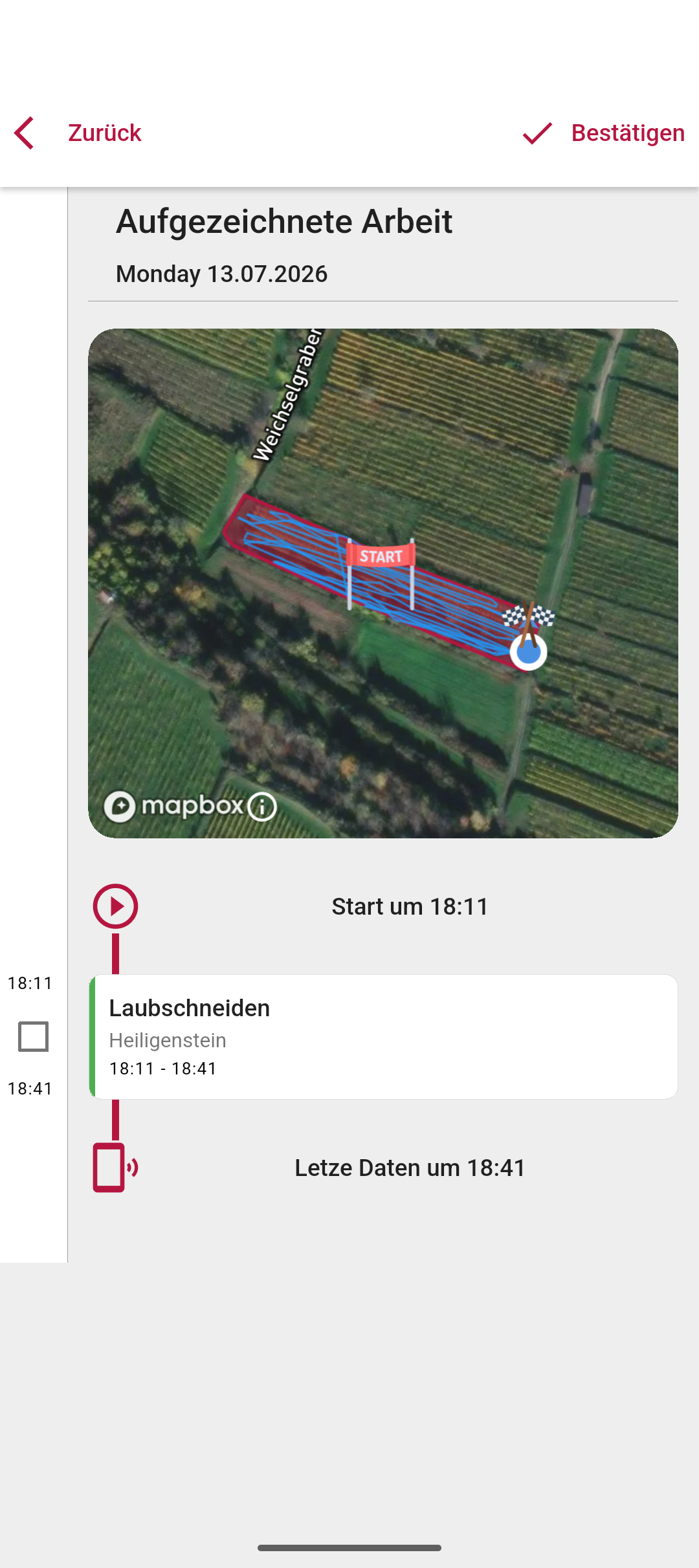
Review the timeline
After GPS tracking ends, the app shows the recorded work as a timeline: each detected segment with its vineyard, time period and — if a matching open task was found — the assigned task.
-
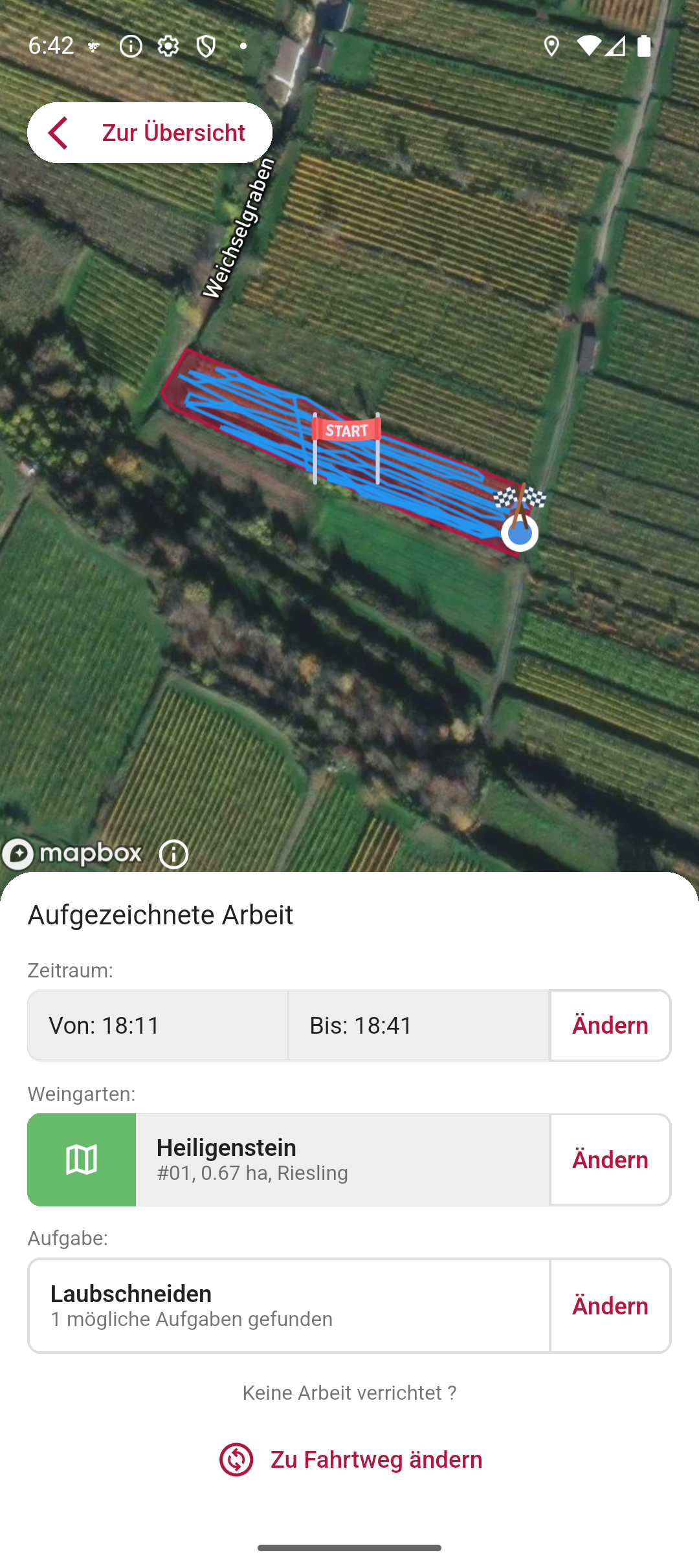
Open a segment
Tap a segment to review the details: the time period, detected vineyard and assigned task can each be corrected here via Change.
-
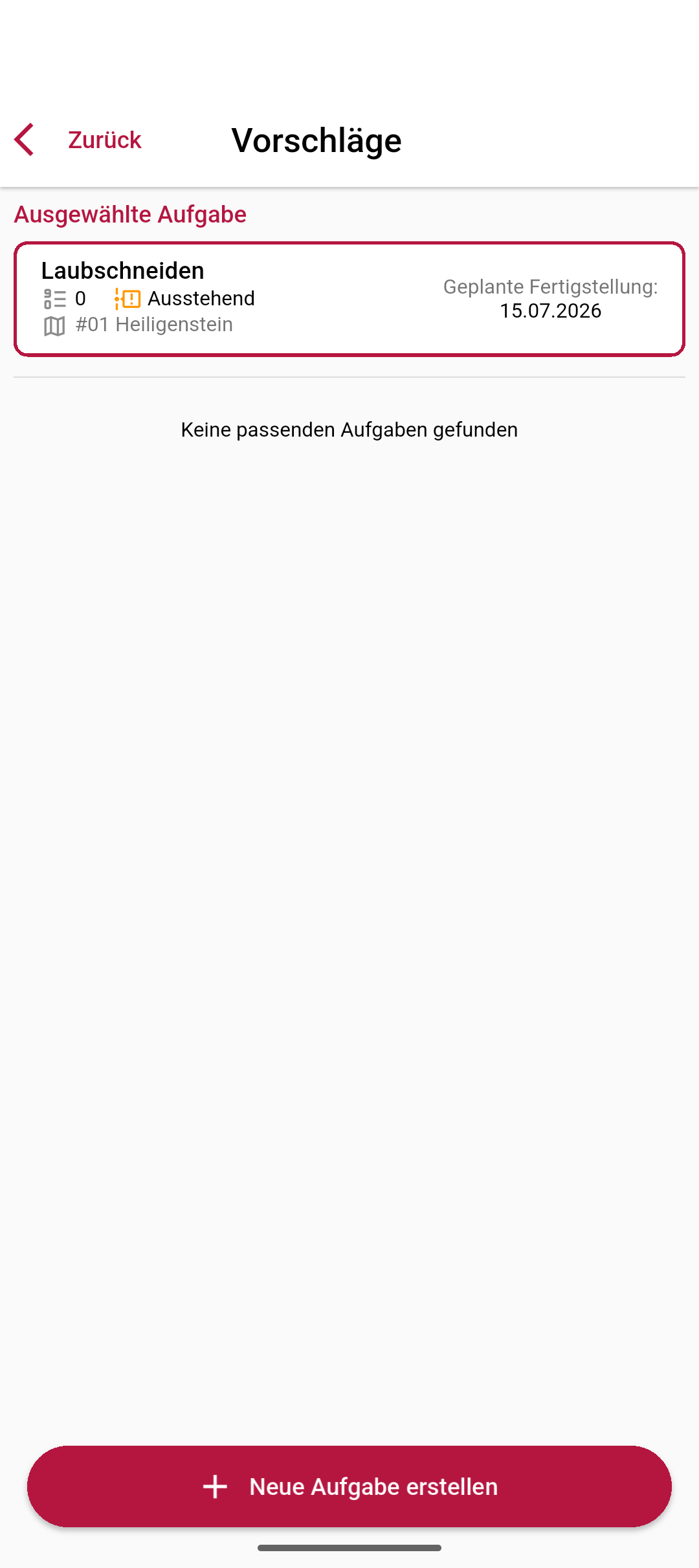
Assign or change the task
Under Task → Change, the suggestions open: Vinitor lists open tasks that match the detected vineyard and time period and are assigned to you. Select the matching task — or create a new one directly via Create new task.
-
Confirm
Tap Confirm in the timeline. The recorded time is booked as a work log on the assigned tasks. Discard segments without actual work (e.g. driving through) using No work done?.
Result
Section titled “Result”Confirmed segments appear as work logs on the assigned tasks — including the working time recorded via GPS. You’ll find the tasks themselves as usual in the task list.
Next steps
Section titled “Next steps”Related documentation
Section titled “Related documentation”SUPPORT
Need help?
Our team is happy to help with any questions about Vinitor.