
Manage equipment
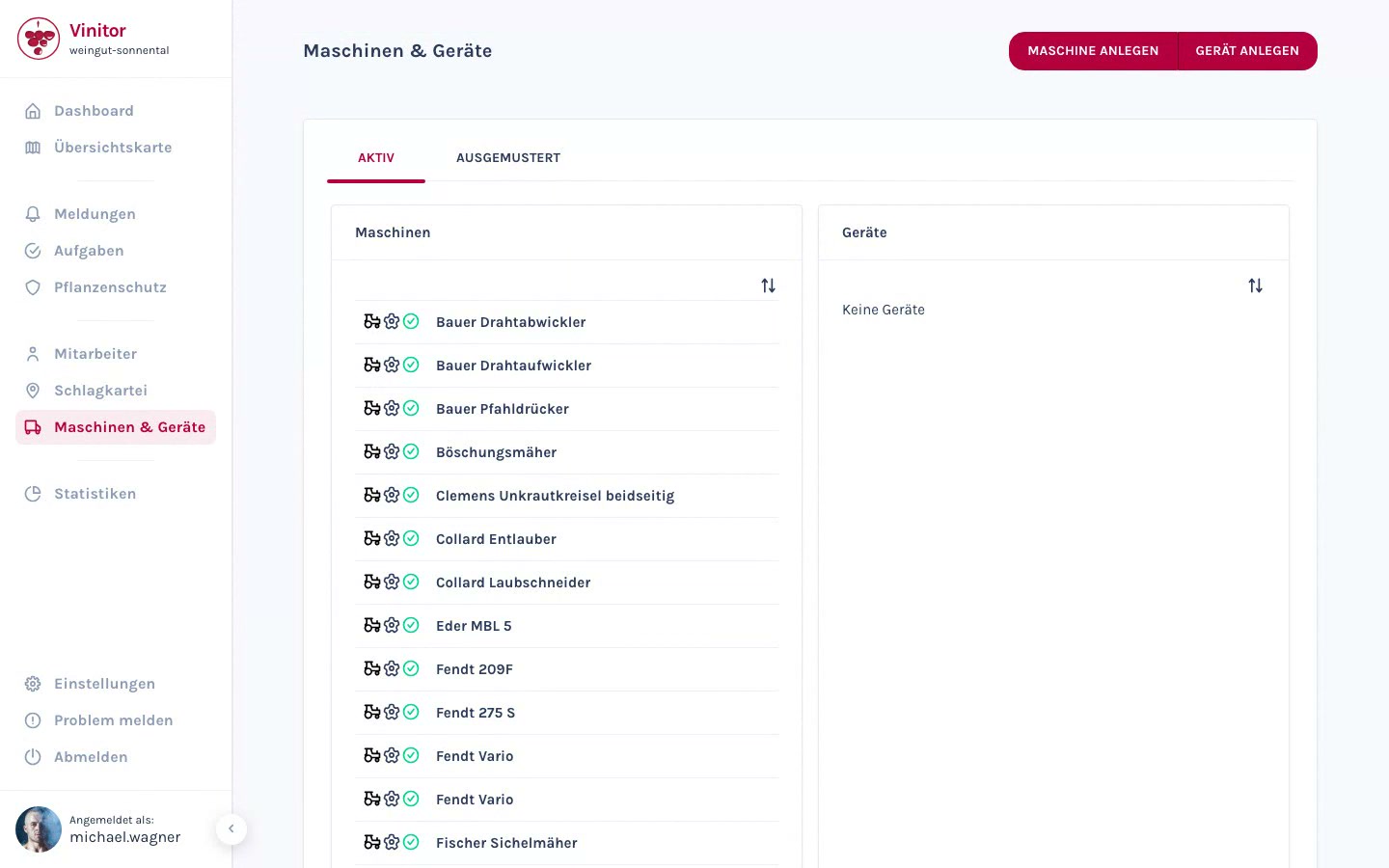
Equipment refers to smaller tools and gear such as shears, sprayers or hand tools. It’s managed on the same page as machinery — under Machinery & equipment in the sidebar — and appears in the right-hand column of the list view.
Create equipment
Section titled “Create equipment”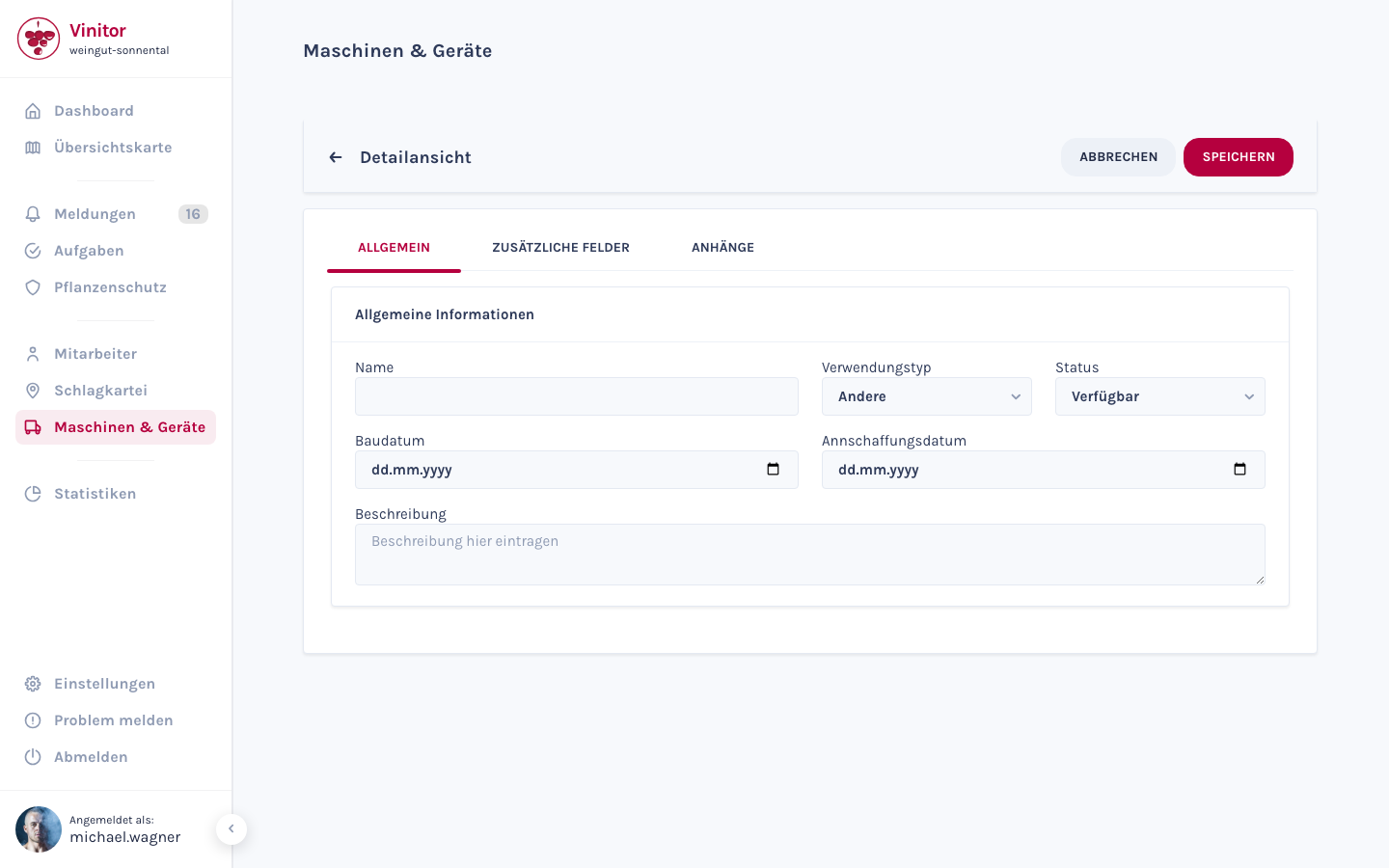
-
Open Machinery & equipment
In the sidebar, navigate to Machinery & equipment.
-
Click CREATE EQUIPMENT
Click CREATE EQUIPMENT in the top right. The creation form opens.
-
Enter a name
Enter a name for the equipment (required field).
-
Select a usage type and status
Optionally select a usage type (Seeding, Harvest, Ploughing, Spraying, Miscellaneous) and a status (Available, In use, In repair, Damaged).
-
Fill in the date fields
Optionally enter the build date (date of manufacture) and the acquisition date (date of purchase).
-
Add a description
Optionally add a description in the free-text field.
-
Check the additional fields
Switch to the ADDITIONAL FIELDS tab to fill in advanced fields (e.g. tank capacity for sprayers).
-
Upload attachments
Switch to the ATTACHMENTS tab to upload files such as manuals or specifications.
-
Save
Click SAVE. The equipment appears in the equipment column, under the ACTIVE tab.
Field reference
Section titled “Field reference”| Field | Required | Description |
|---|---|---|
| Name | Yes | Name of the equipment |
| Usage type | No | Seeding, Harvest, Ploughing, Spraying or Miscellaneous |
| Status | No | Available, In use, In repair or Damaged |
| Build date | No | The equipment’s date of manufacture |
| Acquisition date | No | The equipment’s date of purchase |
| Description | No | Free-text description |
Edit equipment
Section titled “Edit equipment”In the list, click the equipment you want to open the detail view. Click EDIT, change the fields you need, and click SAVE.
Retire equipment
Section titled “Retire equipment”Use the RETIRE button in the detail view to remove a piece of equipment from the active inventory. It then appears in the RETIRED tab and can be reactivated at any time.
Delete equipment
Section titled “Delete equipment”Use the DELETE button in the detail view to permanently remove a piece of equipment. This action requires the EQUIPMENT_DELETE permission.
Task assignment
Section titled “Task assignment”Equipment can be assigned via the Machinery & equipment tab when creating a task. This lets you document which tool was used for a job.
Next steps
Section titled “Next steps”SUPPORT
Need help?
Our team is happy to help with any questions about Vinitor.