
Use the task table
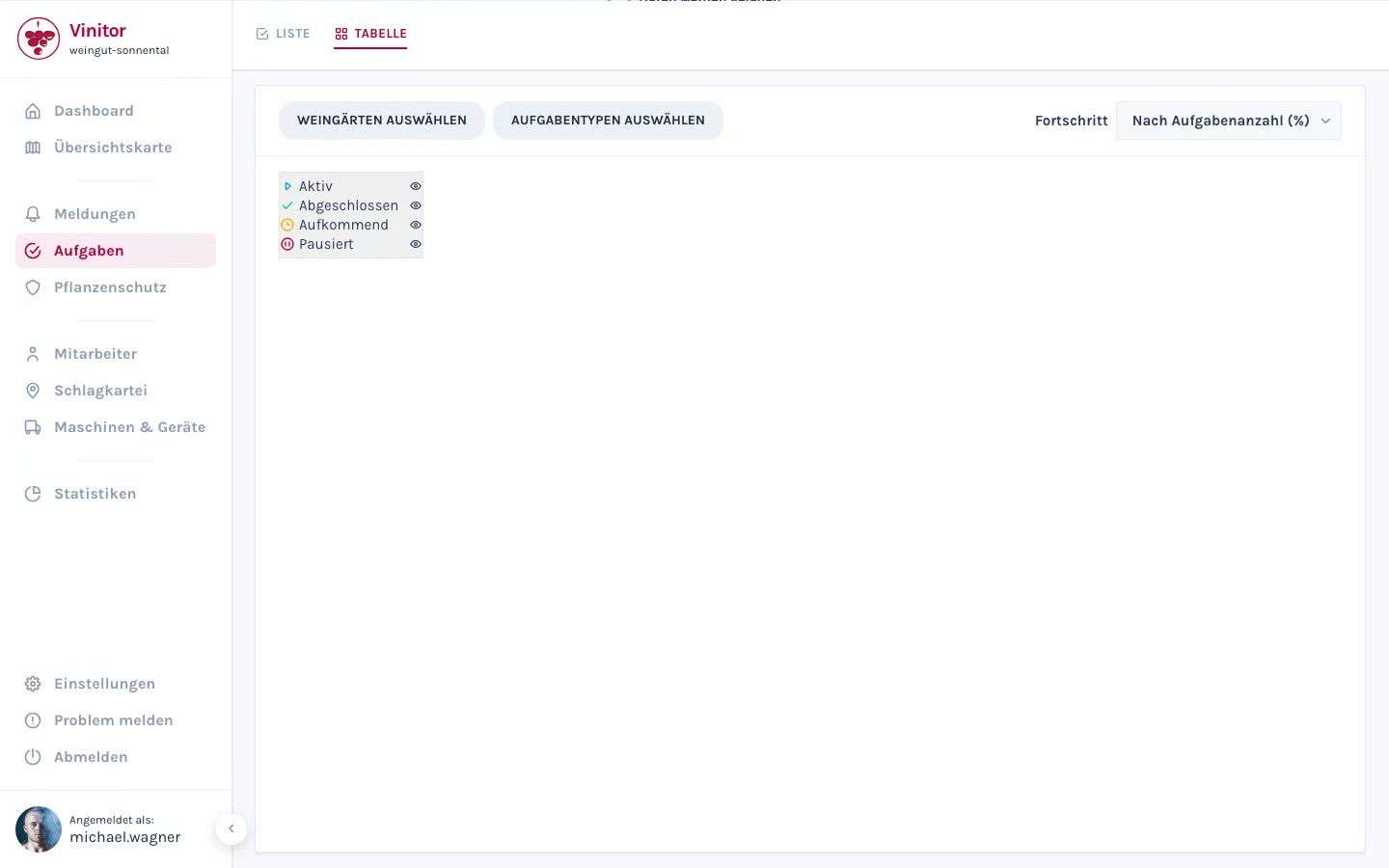
The tasks page offers two views, switched via the List and Table toggle in the top left. Both work with campaigns: one pass of a task type across several vineyards.
Use the list view
Section titled “Use the list view”The list view is the task overview. It shows one row per campaign — not per task.
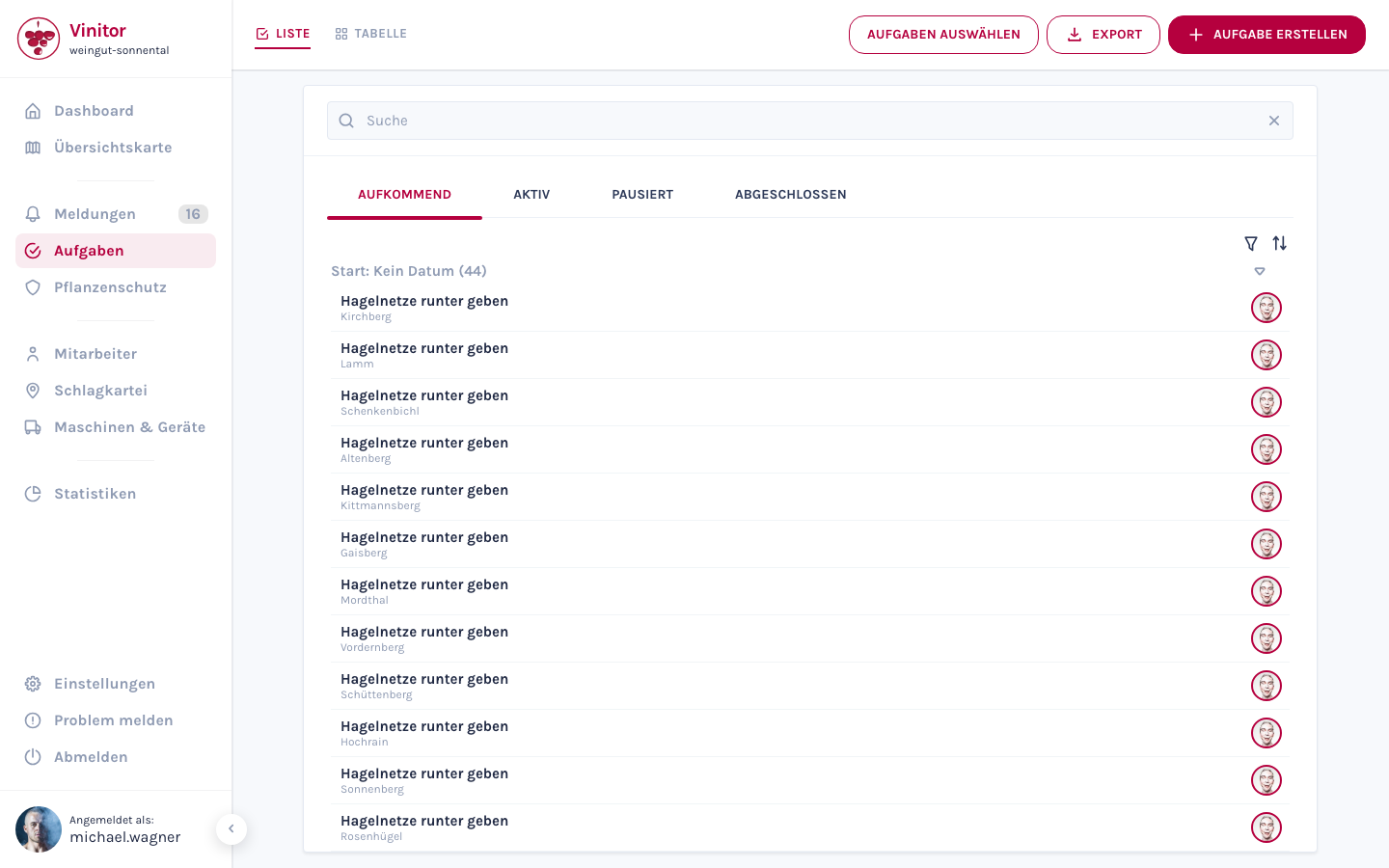
Every row shows the task type, the number of vineyards, the planned period, a notched progress bar with text (“7 of 12 done”), the participating employees and a status chip.
Expand a campaign
Section titled “Expand a campaign”Click a campaign row. A table with one row per vineyard appears underneath — with Status, Prio., Employees and an Action column.
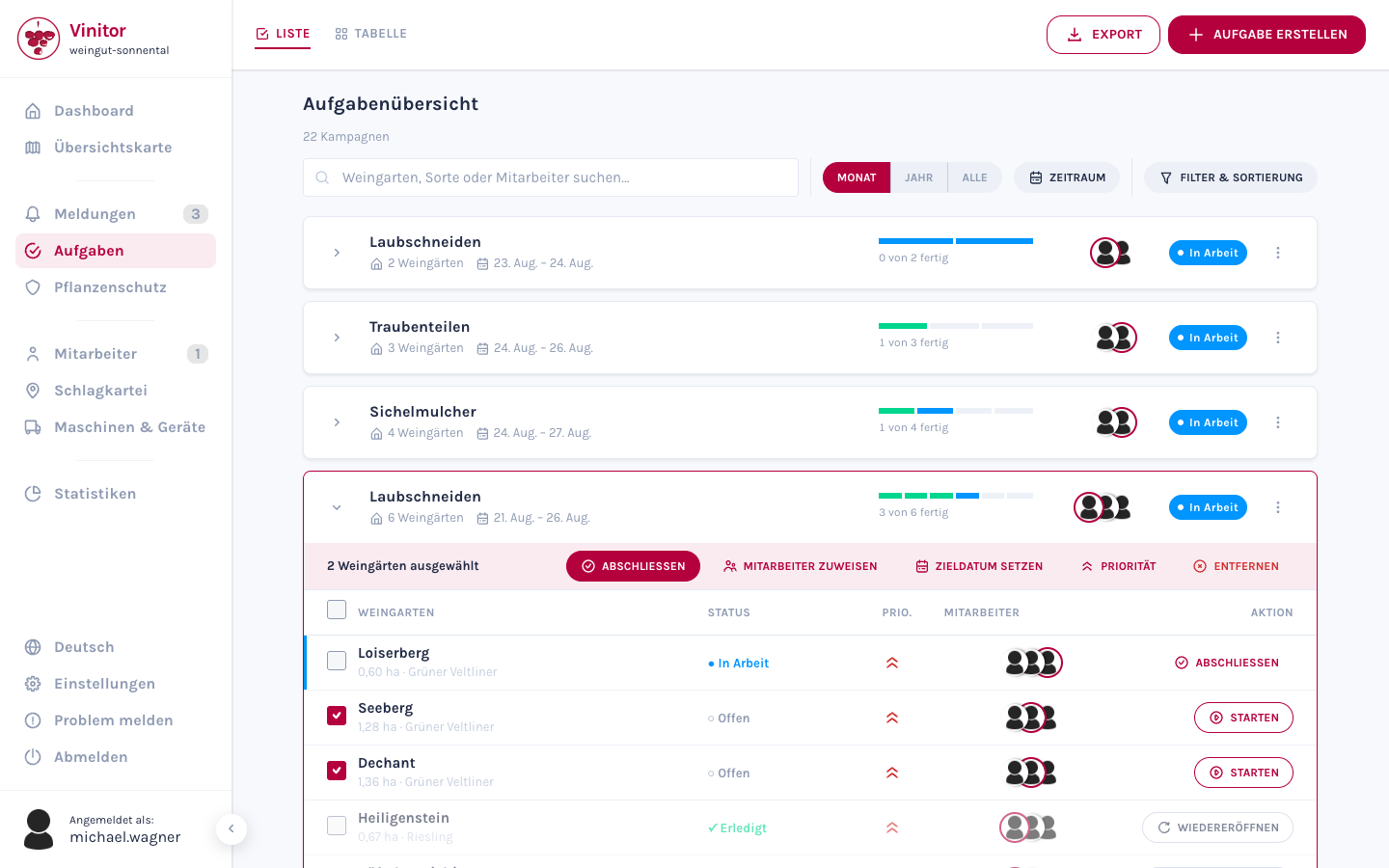
Use the column headers to sort the vineyards by name, status, priority or employee. If the campaign has many vineyards, show the rest via Show all n vineyards.
In the Action column you move an individual task forward:
- Start — the open task becomes active.
- Complete — the active task is marked as done.
- Reopen — a task completed by mistake goes back to In progress.
Edit several vineyards together
Section titled “Edit several vineyards together”-
Select vineyards
In the expanded campaign, tick the checkboxes of the rows you want. The checkbox in the header row selects all of them.
-
Choose an action
The action bar appears above the table, showing the number of selected vineyards and the actions Complete, Assign employees, Set target date, Priority and Remove.
-
Confirm
Assign employees, Set target date and Priority open a selection dialog. Remove asks for confirmation before the tasks are removed from the campaign.
Extend, duplicate or delete a campaign
Section titled “Extend, duplicate or delete a campaign”Via the ⋮ menu on the right of the campaign row:
- Add vineyard — takes further vineyards into the campaign; one new task is created per vineyard. Vineyards already included are skipped.
- Duplicate — creates the same campaign again, e.g. for the second pass. The new tasks start as Upcoming.
- Delete — deletes the campaign together with all of its tasks.
Search, filter and sort
Section titled “Search, filter and sort”- Search field — searches vineyard name, grape variety and employees. Matching campaigns report the number of matches (“3 matches”).
- Period — Month (default), Year, All or a custom period via the Period button with From and Until.
- Filter & sorting — filters by campaign status (In Progress, Done) and sorts by Relevance, Start date, Completion date, Name, Progress or Created. Reset restores the initial state.
Export
Section titled “Export”Click Export in the top right and choose Export PDF or Export CSV.
Use the table view
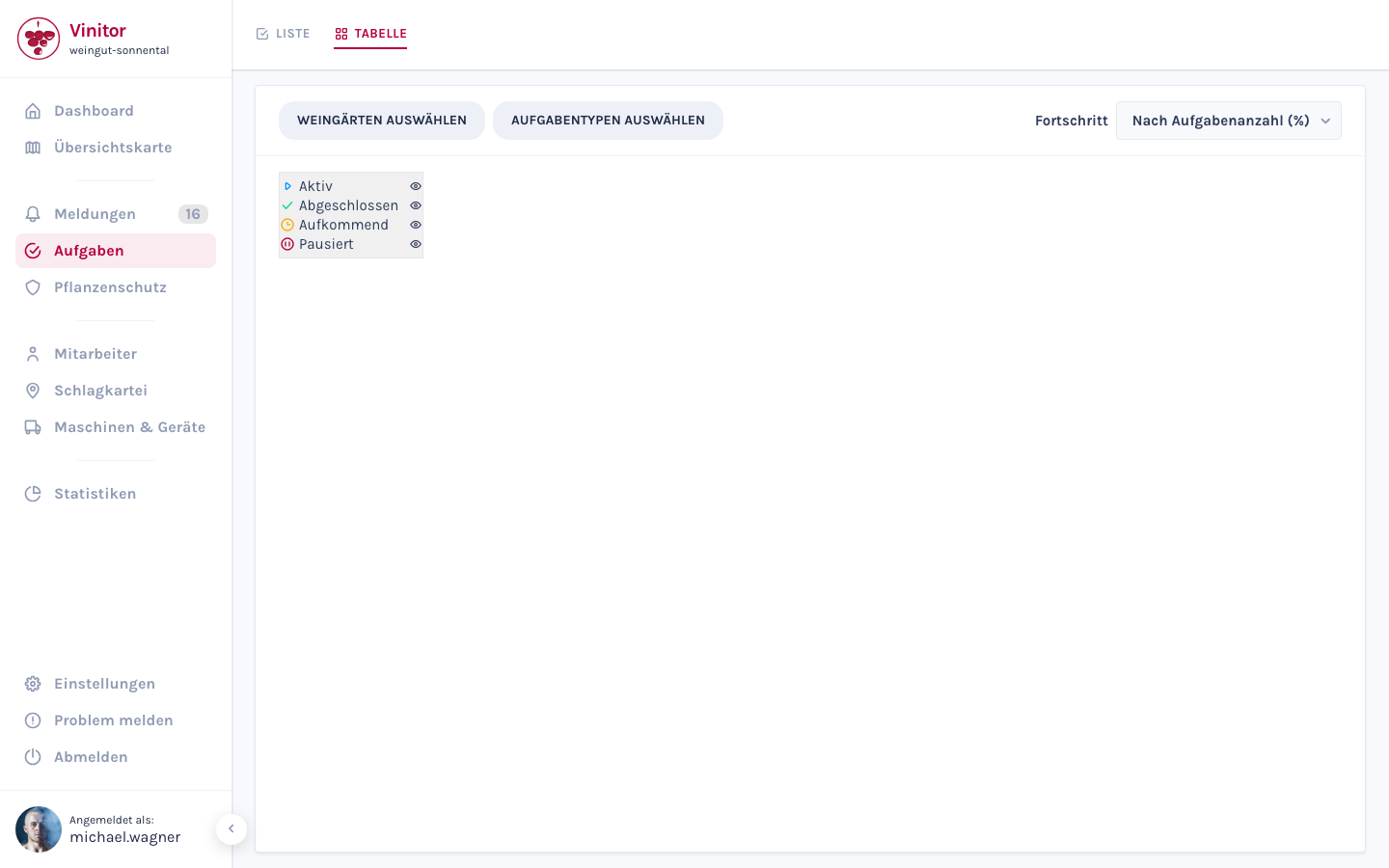
Section titled “Use the table view”The table view is the campaign matrix: vineyards as rows, campaigns as columns. It is particularly well suited to season planning.
Build the matrix
Section titled “Build the matrix”-
Choose vineyards
Click Vineyards. In the Select vineyards dialog you determine the rows — individual vineyards or whole vineyard groups.
-
Choose campaigns
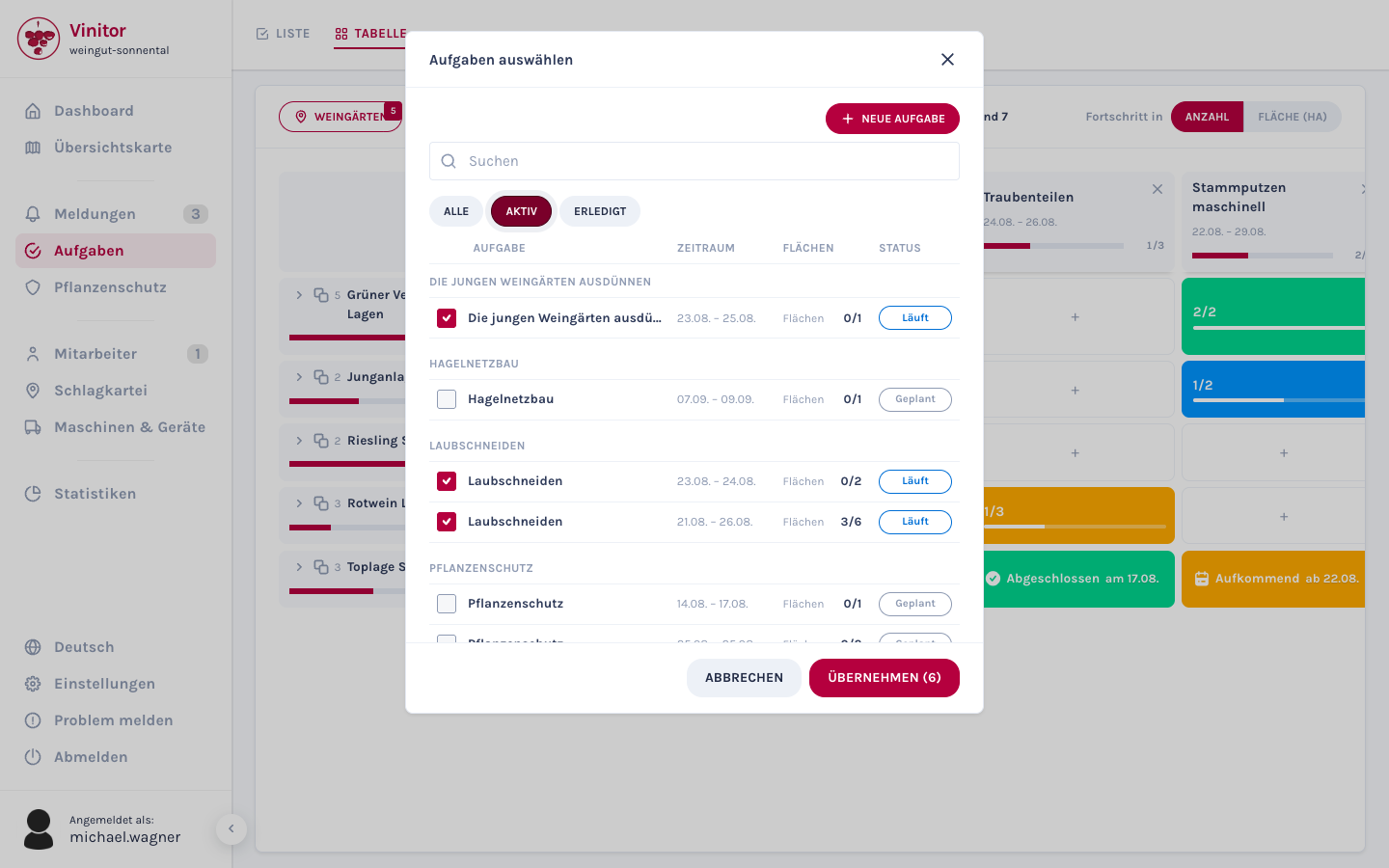
Click Tasks. In the Select tasks dialog you determine the columns. The dialog lists the campaigns with Period and Areas, can be searched and filtered by status (All, In Progress, Done). Use Apply to finish the selection.
-
Adjust the arrangement
Drag the column and row headers into the order you want. Expand vineyard groups to see individual vineyards as sub-rows. Use the × in the column header to take a campaign out of the view again.
If nothing has been selected yet, the matrix shows No tasks selected with the buttons Select tasks and Create task.
Show and hide statuses
Section titled “Show and hide statuses”The header bar carries the status chips In Progress, Done and Upcoming, each with the number of tasks. One click hides that status in the matrix, another click brings it back — this is how you isolate everything that is still open, for example.
Show progress
Section titled “Show progress”Use the Progress in toggle in the top right to choose how progress is calculated: by Count of tasks or weighted by Area (ha).
Edit a cell
Section titled “Edit a cell”Clicking a cell opens a popover.
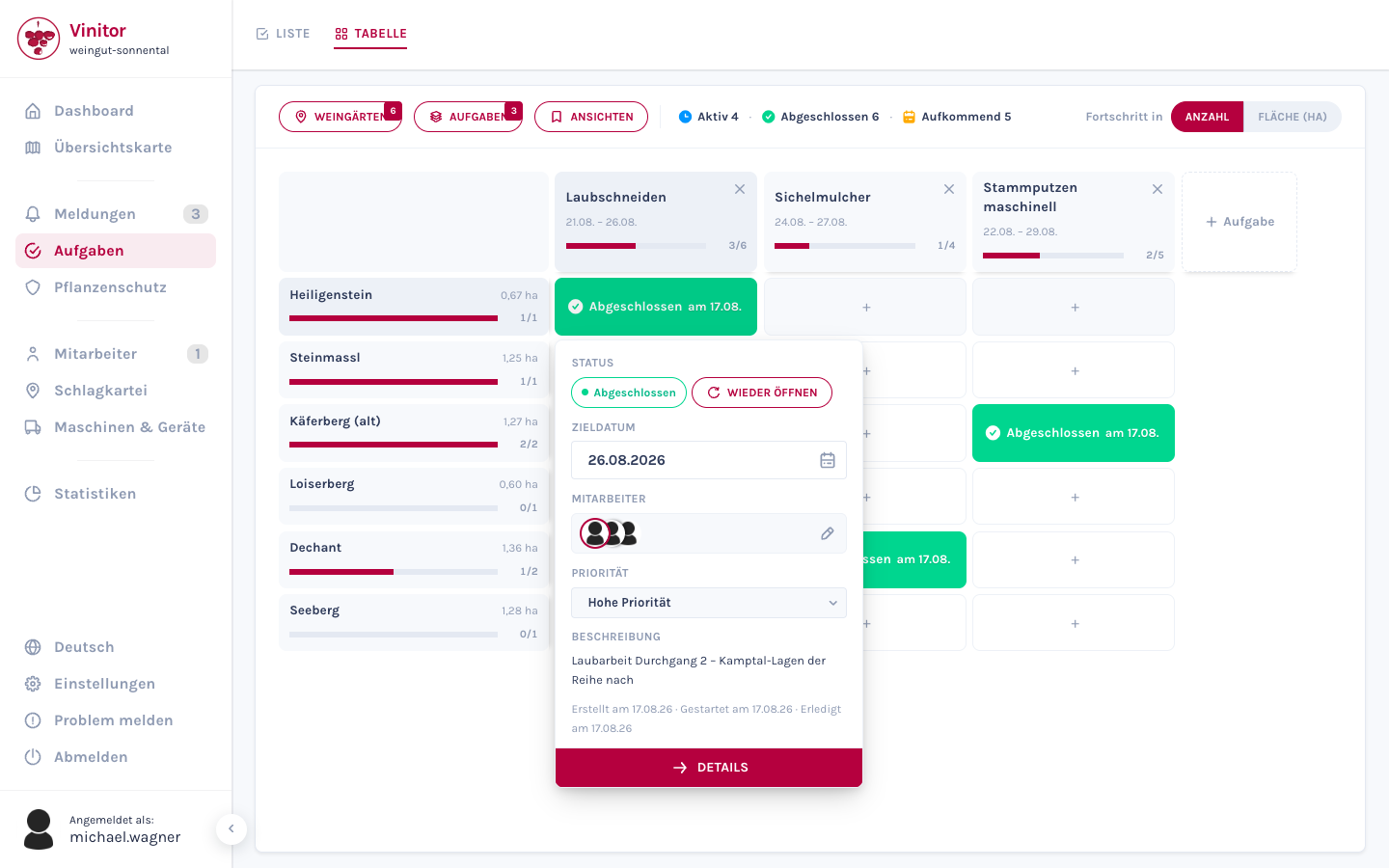
- Empty cell — create a task for this combination of vineyard and campaign directly: fill in Target date, Employees and Description, then Create task.
- Cell with one task — change Status, Target date, Employees and Priority directly in the popover. Details takes you to the task detail page.
- Cell with several tasks — the popover lists the tasks; below them you create an additional one via Create another task.
Save a view
Section titled “Save a view”Once you have found an arrangement you need regularly, save it:
-
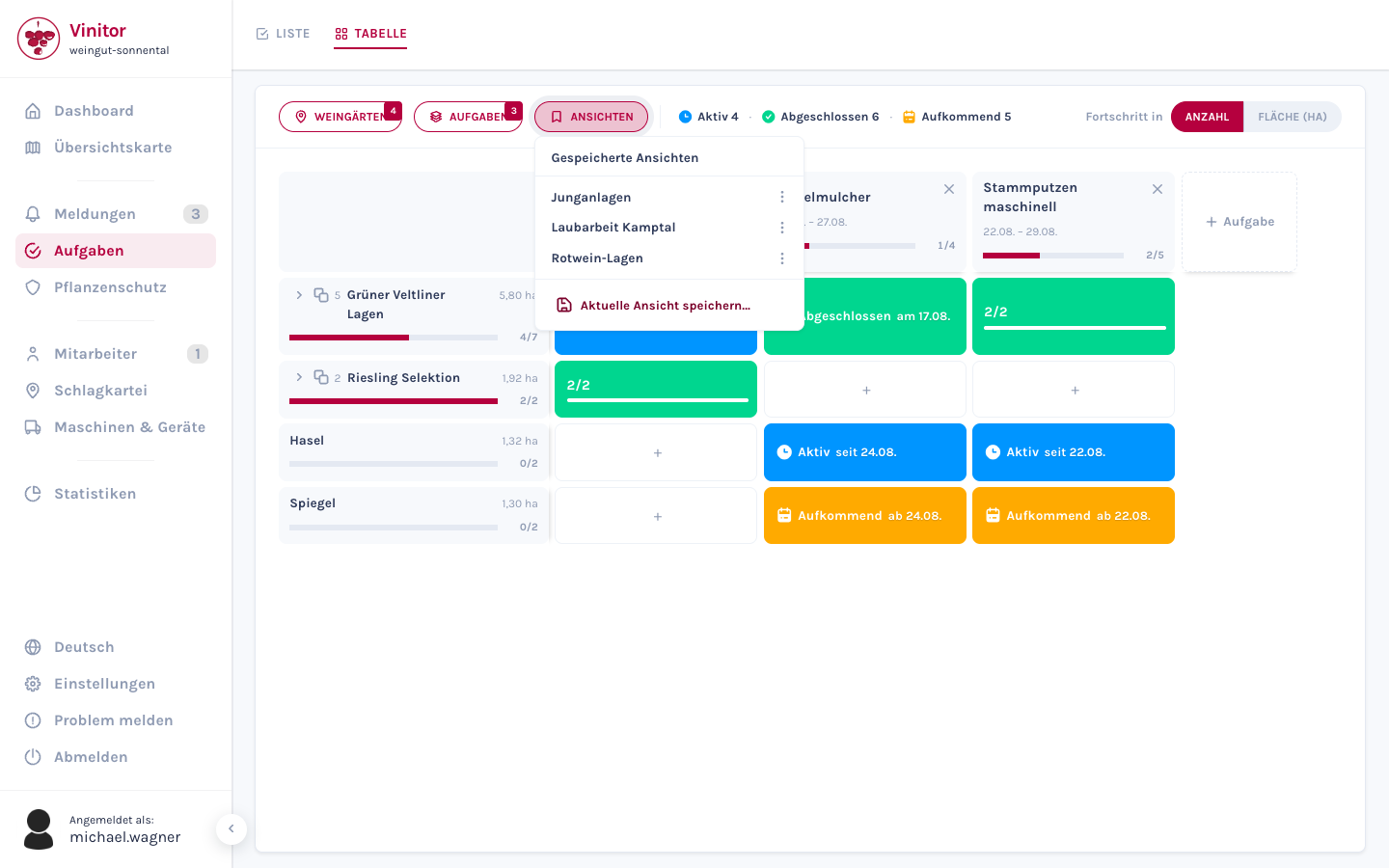
Open Views
Click Views in the header bar.
-
Save the current view
Click Save current view…, enter a name and confirm with Save.
-
Apply a view
Clicking the name restores the vineyards, campaigns, hidden statuses and progress mode. The name appears in the top left of the matrix and can be cleared there via ×.
Use the ⋮ menu of a saved view to Rename or Delete it. Saved views apply to the whole business — what you save, your colleagues see too.
Result
Section titled “Result”With the campaign overview you steer whole passes of work instead of individual tasks, and move several vineyards forward with a single click. The campaign matrix shows at a glance which work has already been done in which vineyards — and saved views keep your standard analyses always within reach.
Next steps
Section titled “Next steps”Related documentation
Section titled “Related documentation”SUPPORT
Need help?
Our team is happy to help with any questions about Vinitor.